Getting Students Registered
-
See Written Details
Congratulations! You just set-up your class, you should see the Class Creation Confirmation page featured below on your screen. To get your students registered, you have two options.
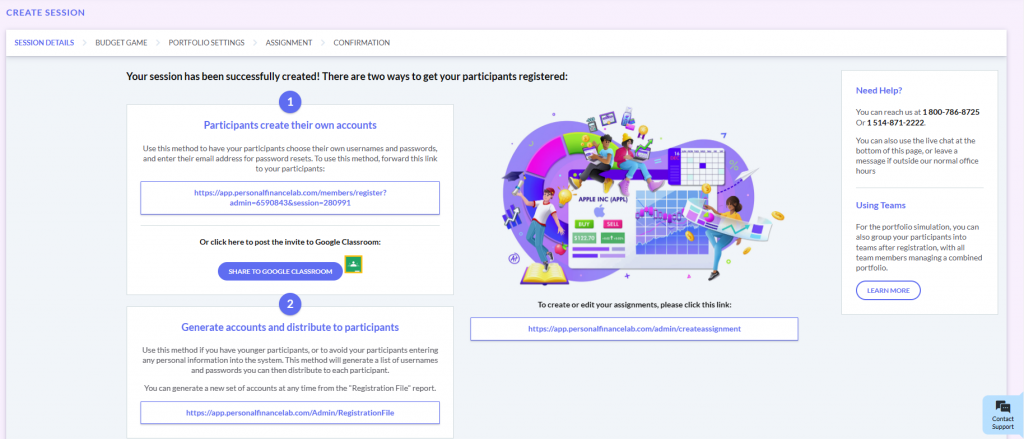
Option 1 – Students Register Themselves
Use this option if you want your students to choose their own usernames and passwords, and enter their email address for password resets. You can share your registration link directly to your Google Classroom by clicking Share to Google Classroom.
You can access your registration link at any time by going to the Summary Report page. This page is available under the Reports menu, click Summary Report.
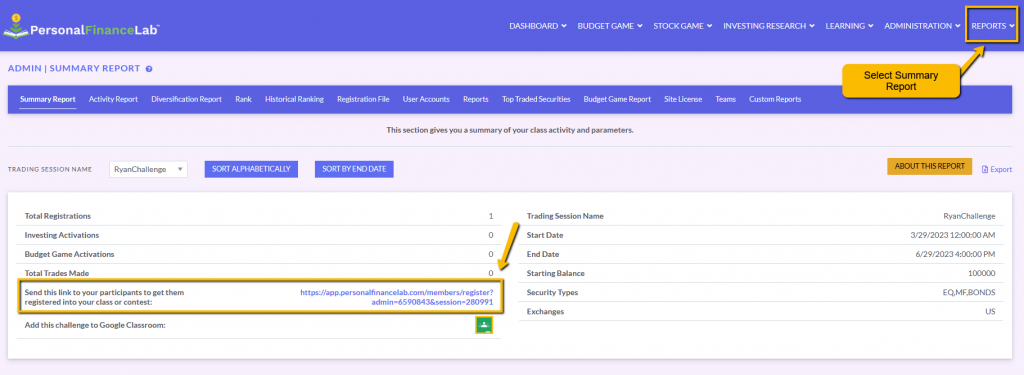
Option 2 – Generate Student Accounts
If you have younger students in your class, or you don’t want your students providing any personal information, you can generate accounts for everyone in your class. To do this, go to Registration File/Password Reset under the Administration dropdown menu.
Next, follow the steps shown below. Put in the prefix that all accounts will start with, and our system will randomly generate usernames and passwords. Enter the total amount of student accounts you need, and click Add.
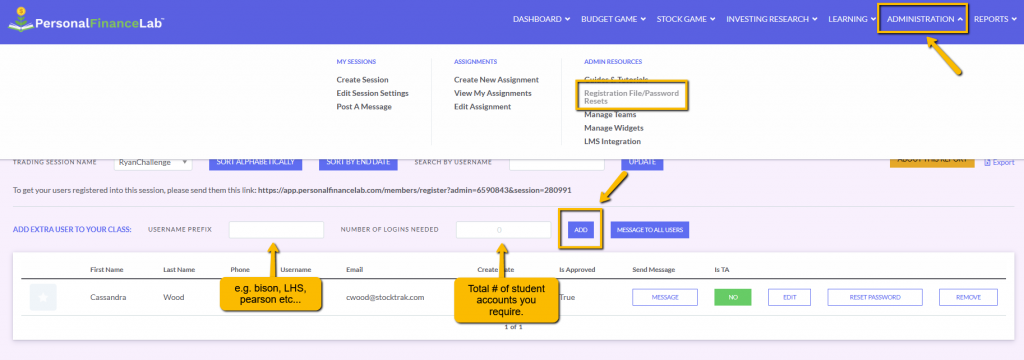
Within a few seconds a list will appear with your student accounts. This list will also be sent to your teacher/admin email address.
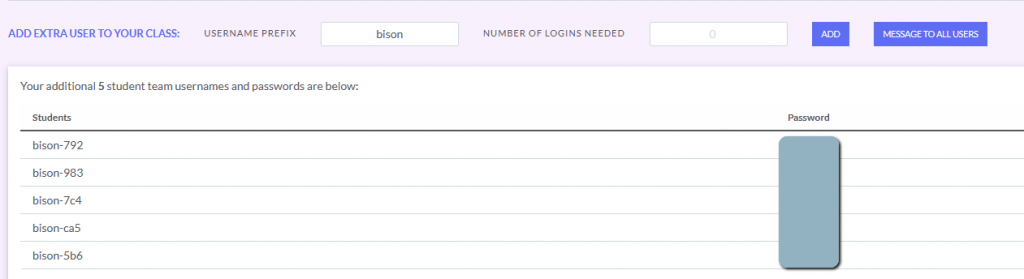
TIP: We recommend you copy the usernames/passwords into a spreadsheet as soon as you receive them. Then, add the student names associated with each account before distributing them to your class. This will allow your students to remain completely anonymous, yet will make grading and reviewing reports a lot easier in the future!
Returning Students
If a student has already used the platform in a previous class, have them log in to their existing account first. Then, ask them to click your new registration link. This will add the new class to their existing account. If your class is private, make sure to provide the password so they’re able to join your new class.
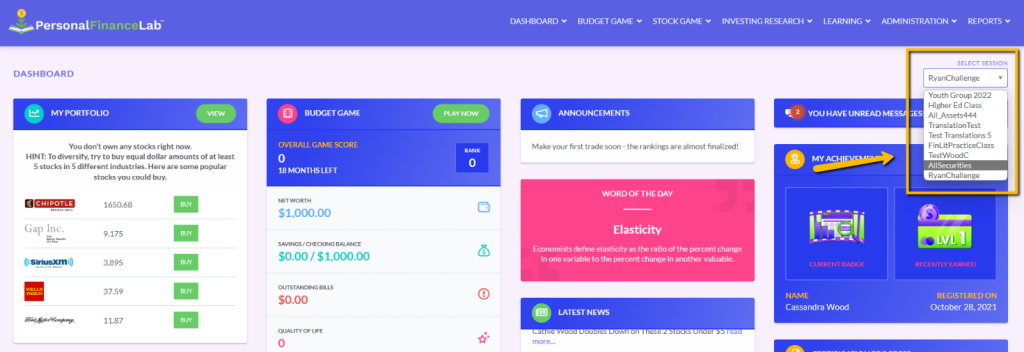
A student is able to toggle between classes from the Student Dashboard. They will need to select the class first from the dropdown menu to be able to access the lessons and games. Their progress is saved as they go!