Student Guide
Getting Started
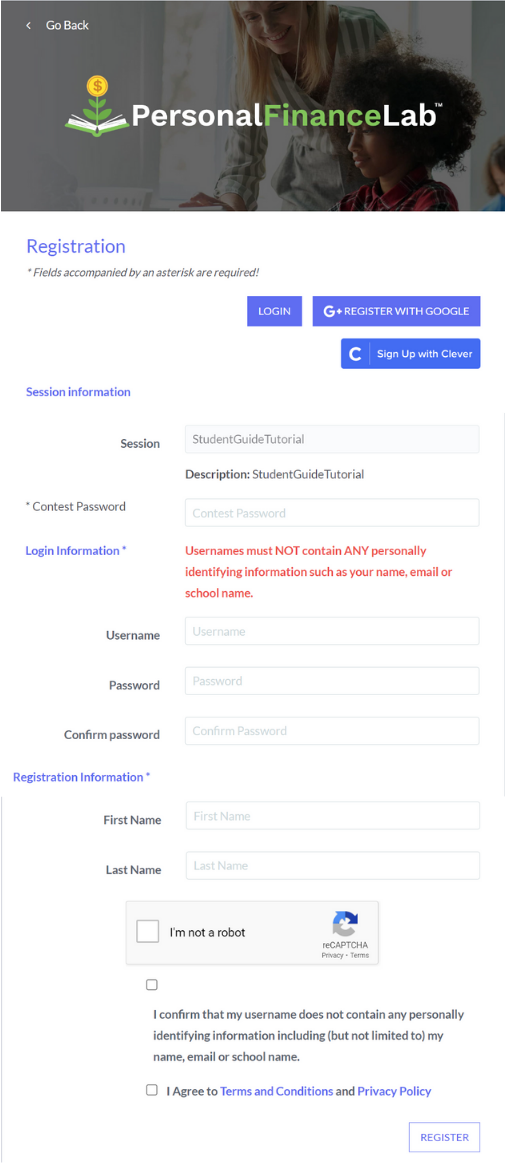
Create Your Account
If your teacher has shared a registration link with you to set-up your account, you’ll need to fill in the information below to choose your username and password.
Most contests/sessions on PersonalFinanceLab are private, so ask your teacher for the password to be able to complete your account.
Please make sure to use a username that does not contain any personal information!
For your last name, we will only collect the first initial so that your teacher can identify you in their reports.
After you click Register you will be brought to this screen.
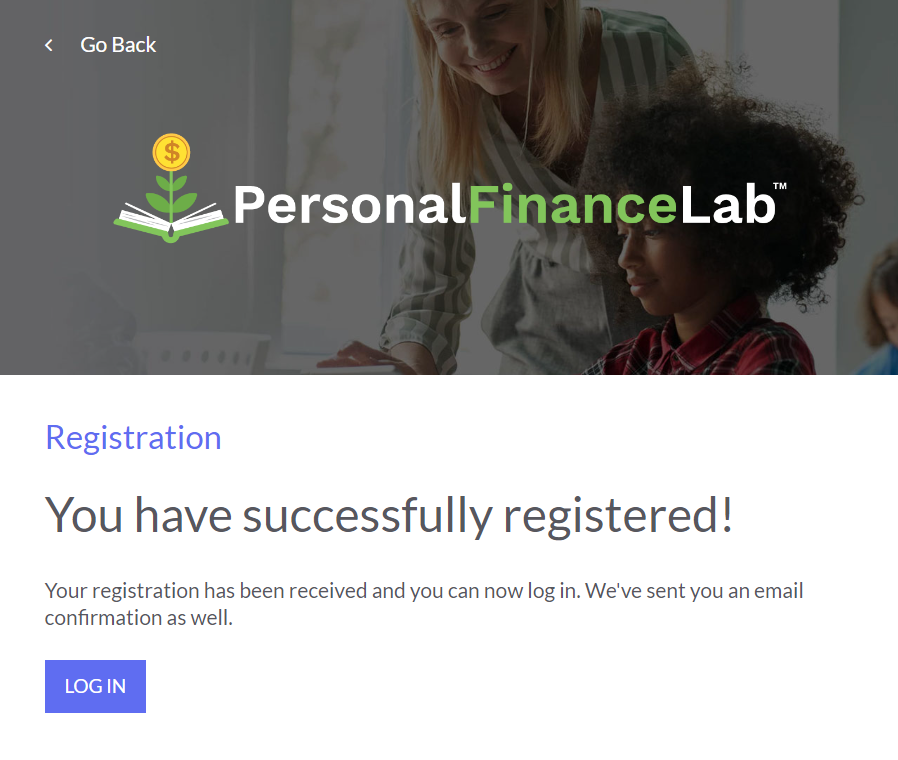
Click Log In to continue to PersonalFinanceLab.
Welcome Tour
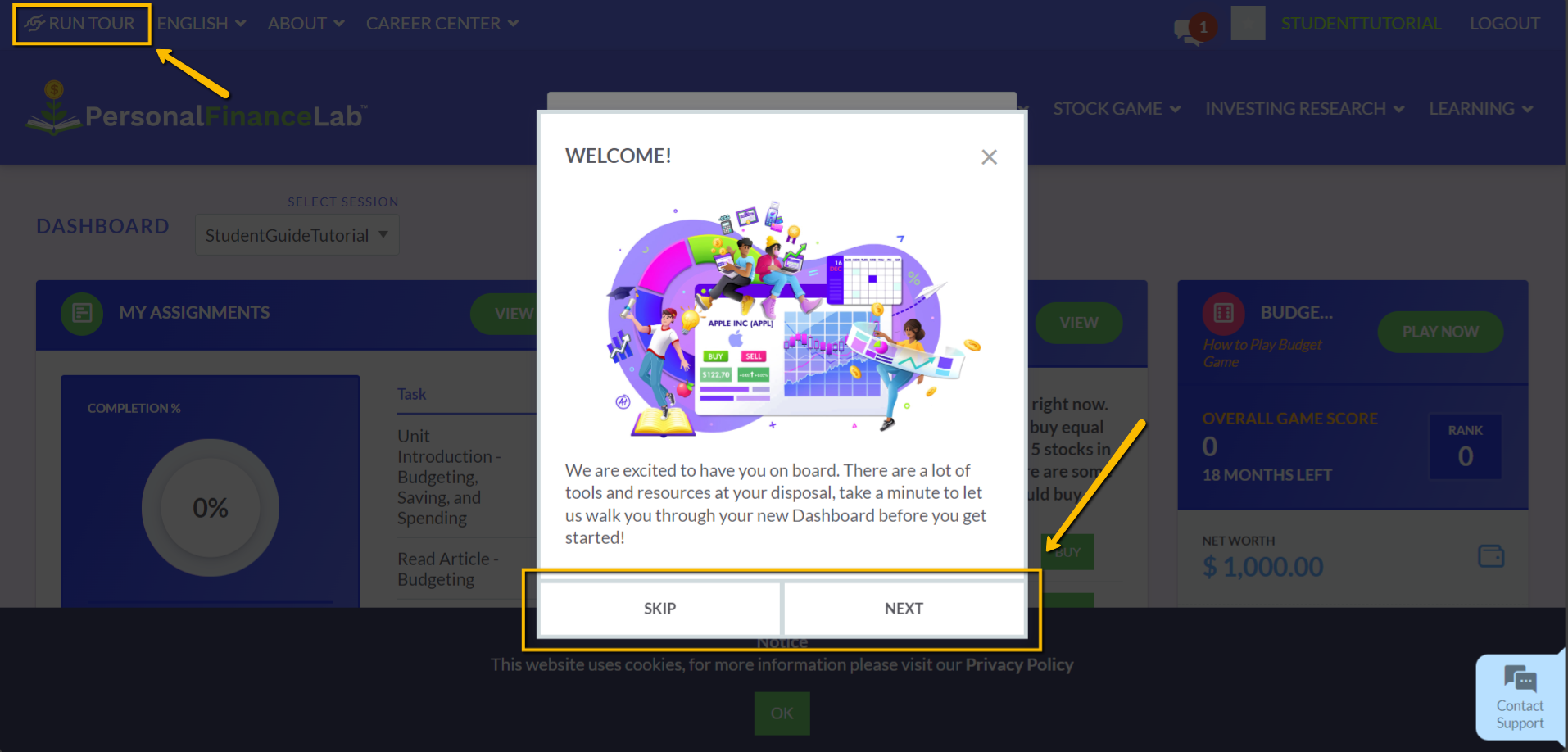
Next, you’ll see Welcome Tour, which you can access anytime by clicking Run Tour from the top menu.
Click Skip to close the window, or Next to get an introduction of the site. You can also reference the Site Navigation section below, to get a walkthrough of each page and the main menu.
Disclaimer
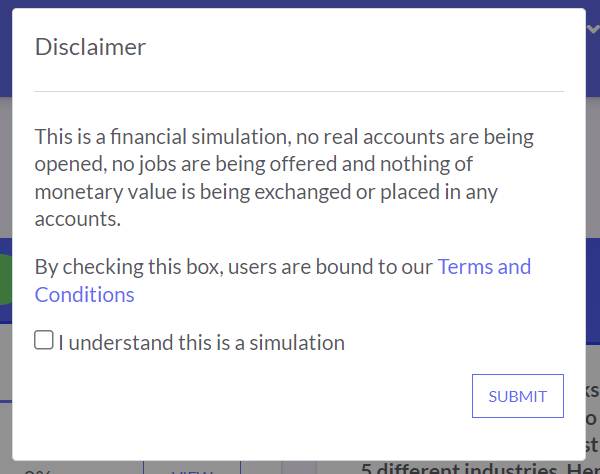
Finally, check the box to confirm that you understand this is a financial simulation, then click Submit to start using PersonalFinanceLab.
How to Play the Stock Game
This video will introduce you to the Stock Game. Here are the main features that we will cover:
- 0:08 – My Portfolio Widget
- 0:24 – Getting Trading Ideas
- 0:31 – Symbol Lookup
- 0:57 – Access Trading Pages
- 1:09 – Placing a Trade
- 1:45 – Order Types
- 1:54 – Trading Tutorial Videos
- 2:04 – Preview Order & Adding Trade Notes
- 2:30 – Stock Game Menu
- 2:37 – Portfolio Summary Page
- 3:01 – Open Positions Page
- 3:50 – My Rankings
When you’re done, check out the Basic Research and Comparing Stocks activity, that will help you pick your first few stocks to buy.
Click the link below to go straight to the activity.
How to play the Budget Game
This intro video will go over the Budget Game. Here are the main features that we will cover:
- 0:08 – How to Access the Budget Game
- 0:26 – Setting Your Fixed Expenses
- 1:11 – Building Your Monthly Budget
- 1:26 – Upcoming Income
- 1:43 – Expected Cash Outflow
- 2:11 – Savings Goals
- 2:28 – Building Your Emergency Savings Fund
- 2:50 – Pop-up Choice Cards. Random Unplanned Expenses
- 3:09 – Pop-up Choice Cards. Needs vs. Wants (Balancing Quality of Life)
- 3:38 – Pop-up Choice Cards. Weekly Income (Pay Day!)
- 3:49 – Pop-up Choice Cards. Weekend Options
- 4:12 – Pop-up Choice Cards. Financial Literacy Lessons
- 4:26 – Managing Your Expenses
- 4:56 – Credit Card Statements
- 5:09 – Game Scores
- 5:32 – Budget Game Menu
- 5:55 – My Apartment
- 6:07 – Game Rankings
Ready to start playing the Budget Game?
Click the link below to go to the Budget Game page.
Financial Literacy Pre-Test
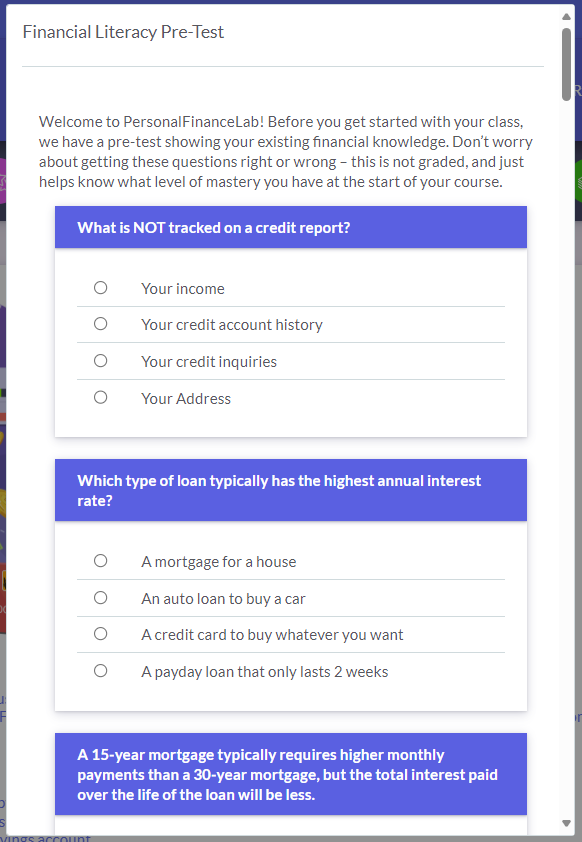
To help gauge how well you are learning the financial literacy concepts covered on PersonalFinanceLab, you will be asked to complete a pre-test at the beginning when you start using the platform.
It’s okay if you don’t know all the answers!
The goal is to see where you are today, on the first day, compared to the end of your session. So, you will have another post-test near the end of your session.
You will need to complete the pre-test before getting access to either the Budget Game or Stock Game.
Your Assignments
Accessing Assignment Page
You can access the Assignments page from several places.
- From the Main Menu > Go to the Learning tab > Click View Active Assignments
- From the Dashboard > Go to the My Assignments widget > Click View
- From the Budget Game page > Go to the Right-Side Panel > Click View to open individual lessons
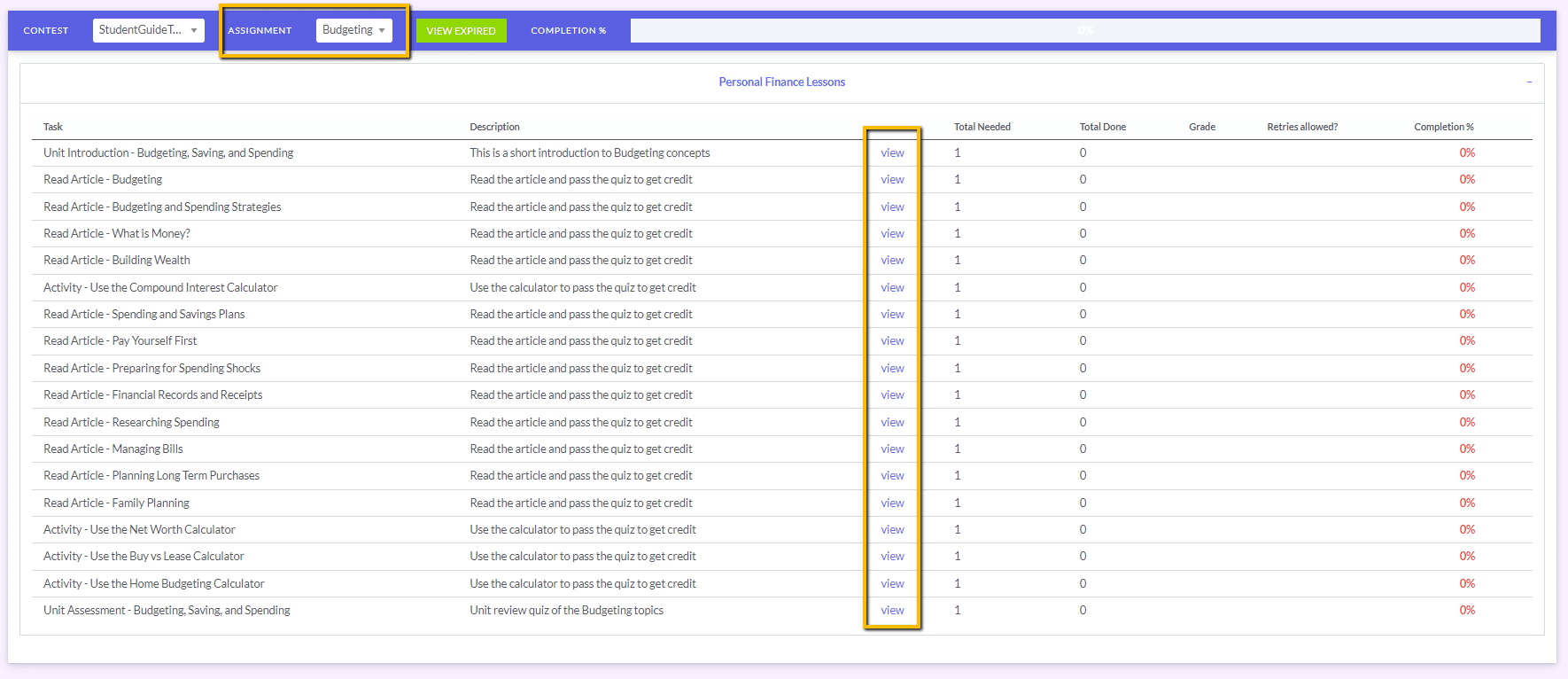
Your teacher may have set-up multiple assignments. You can choose from the Assignments dropdown menu. In this example, we are looking at the Budgeting assignment.
From here click View to open individual lessons.
Lessons
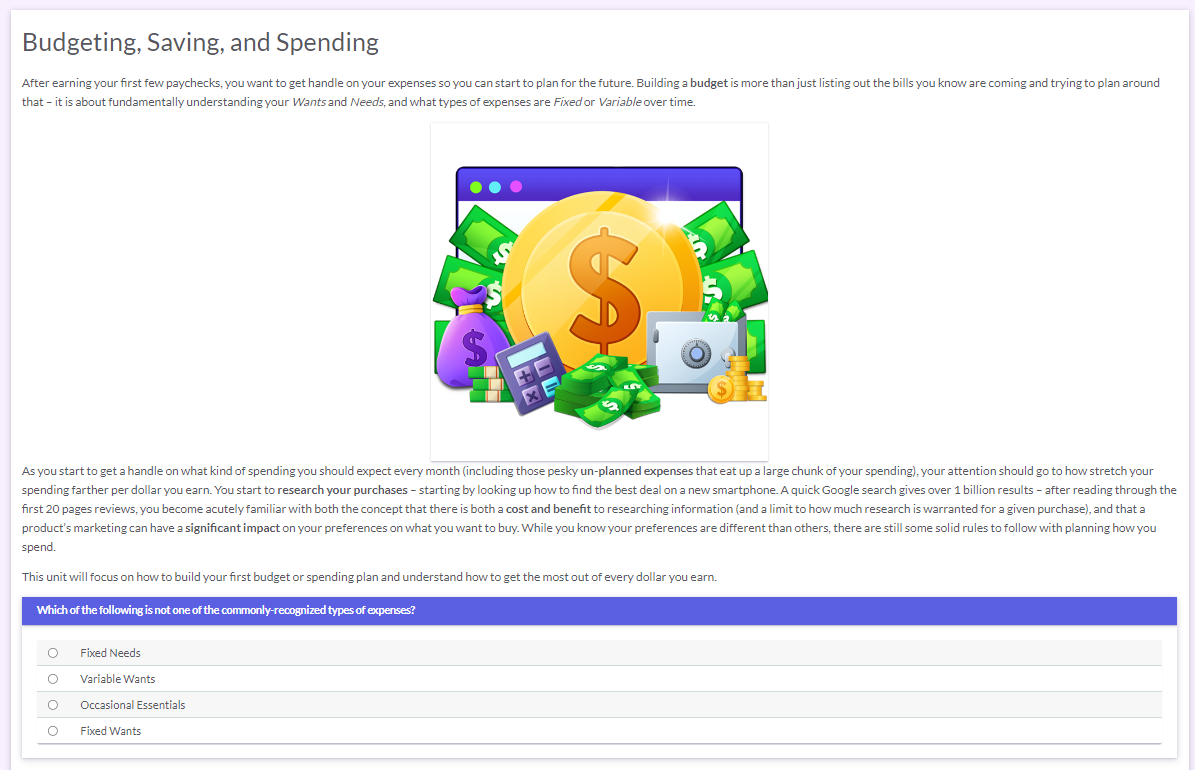
On PersonalFinanceLab, some lessons include videos or interactive calculators. Every lesson ends with a pop quiz. After you finish reading the lesson, to get credit, answer all the multiple-choice questions and click Submit.
Lesson Summary
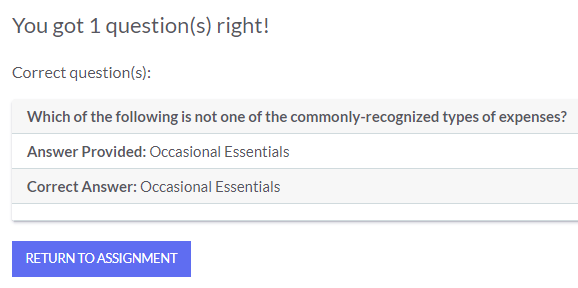
You will see a summary of your answers. Click Return to Assignment.
Assignment Progress
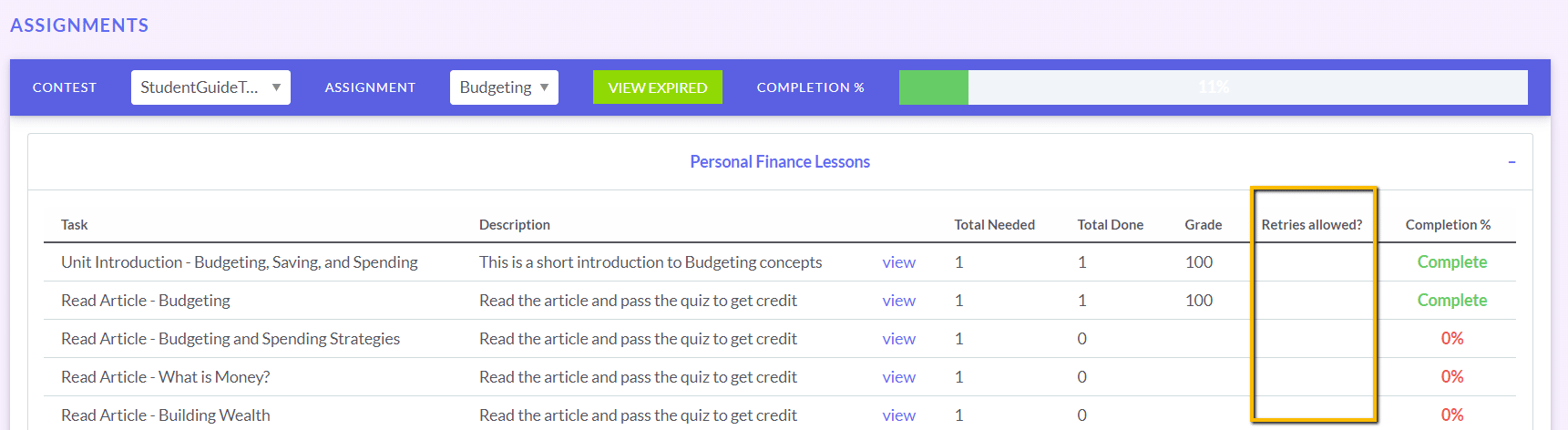
As you complete your lessons, you will see your Completion % Gauge increasing (and turning green).
If your teacher has allowed you to retry your pop quizzes to get a better grade, you will see Yes listed under the Retries allowed? column. If not, it will be blank.
Dashboard
-
Accessing the Dashboard

You can access the Dashboard from anywhere on site by going to Dashboard on the Main Menu. Then click on Return to Dashboard.
-
Select Session
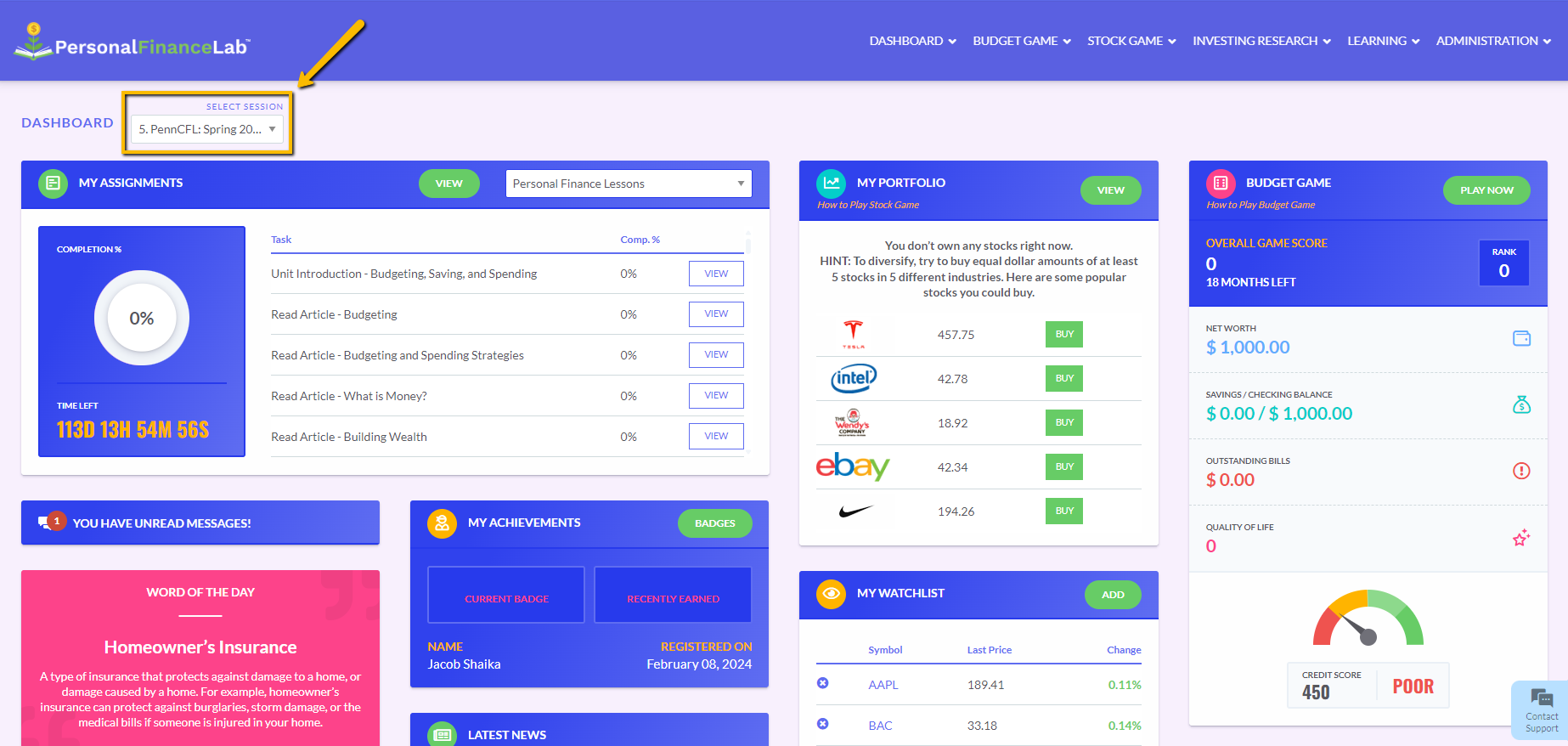
If you’re registered to more than one session, choose the one you want to access from this dropdown menu.
-
My Assignments Widget
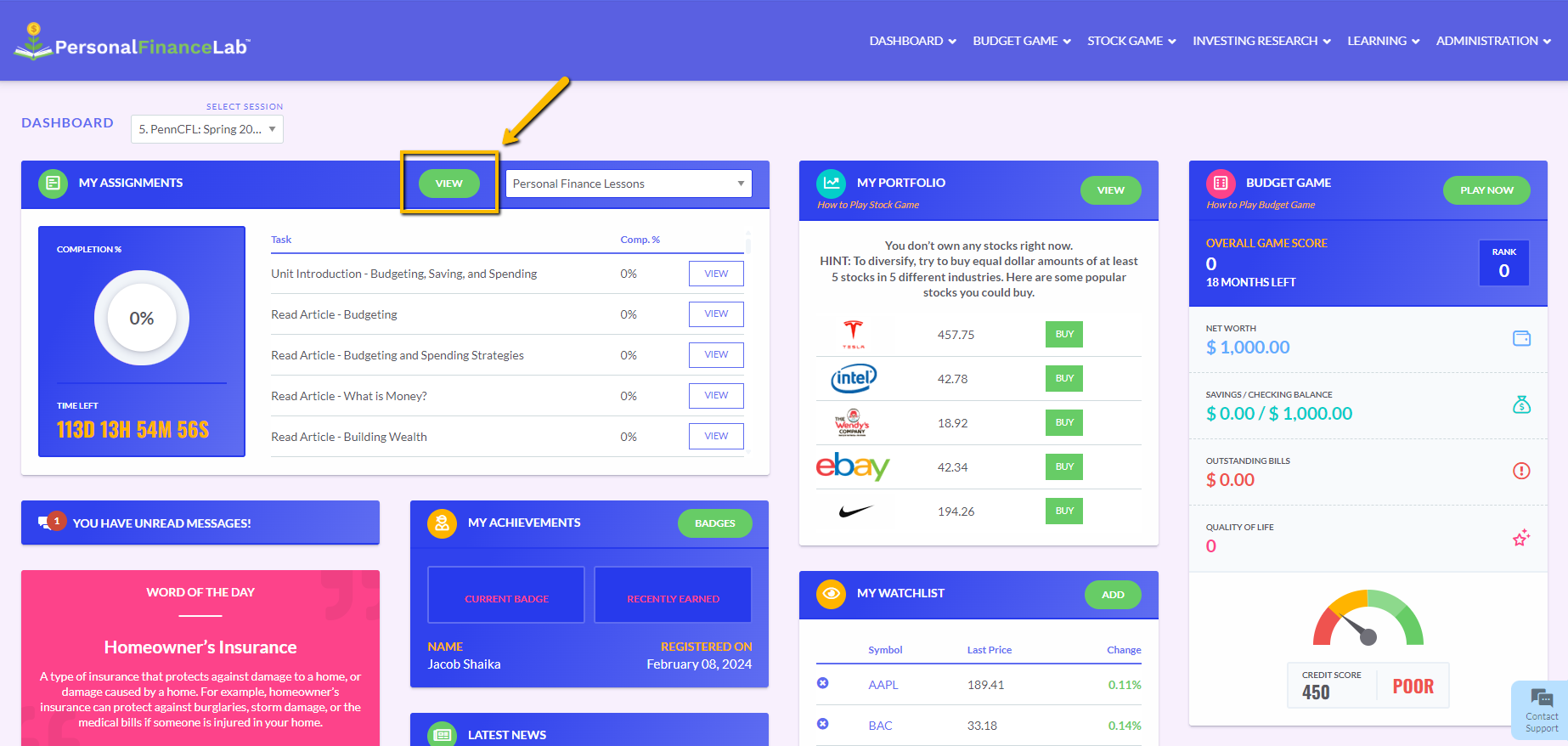
The first widget on the Dashboard is for the assignments that are included in your session. Click View to go to the assignment page to see all the lessons included.
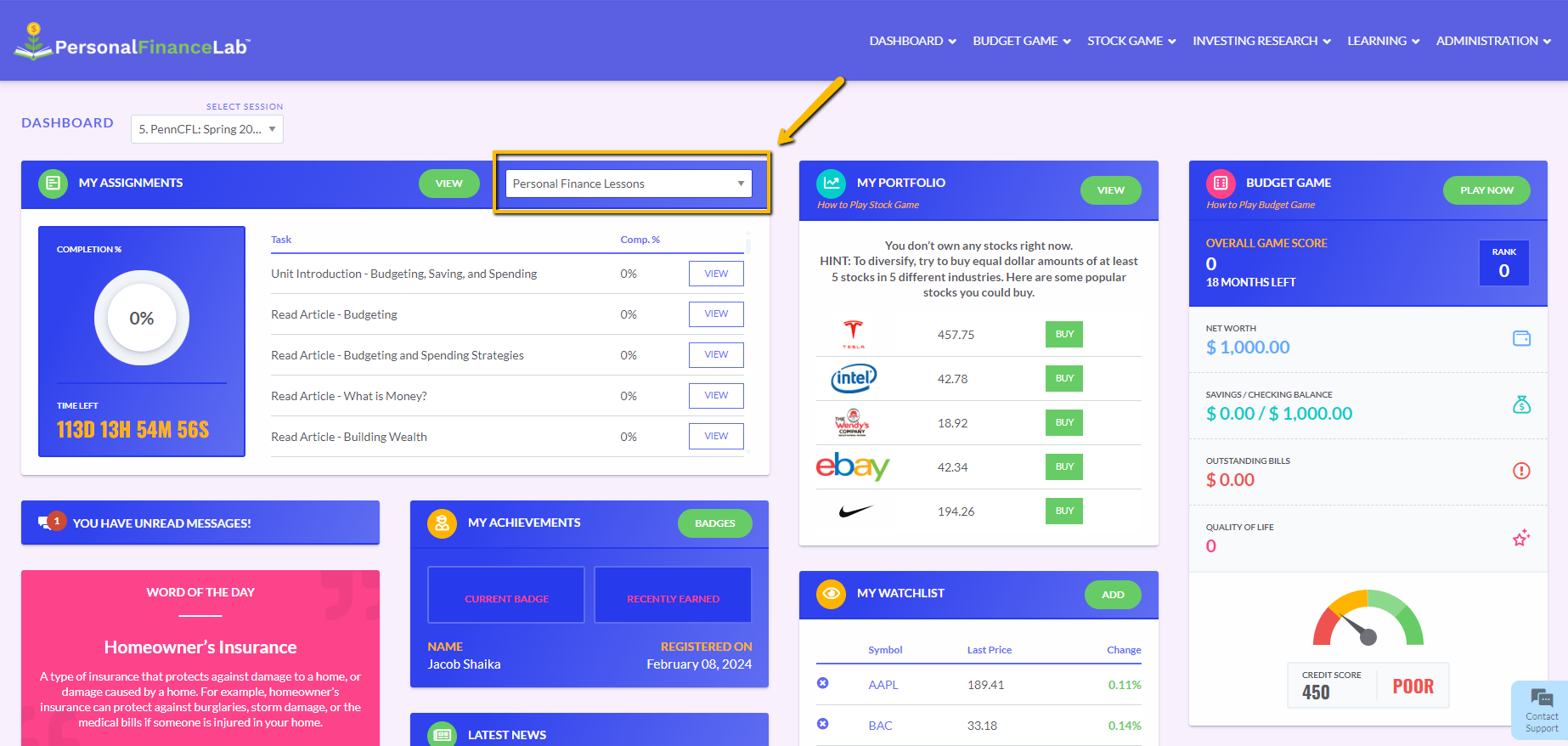
Your session may have more than one assignment, to view the other assignments use this dropdown menu.
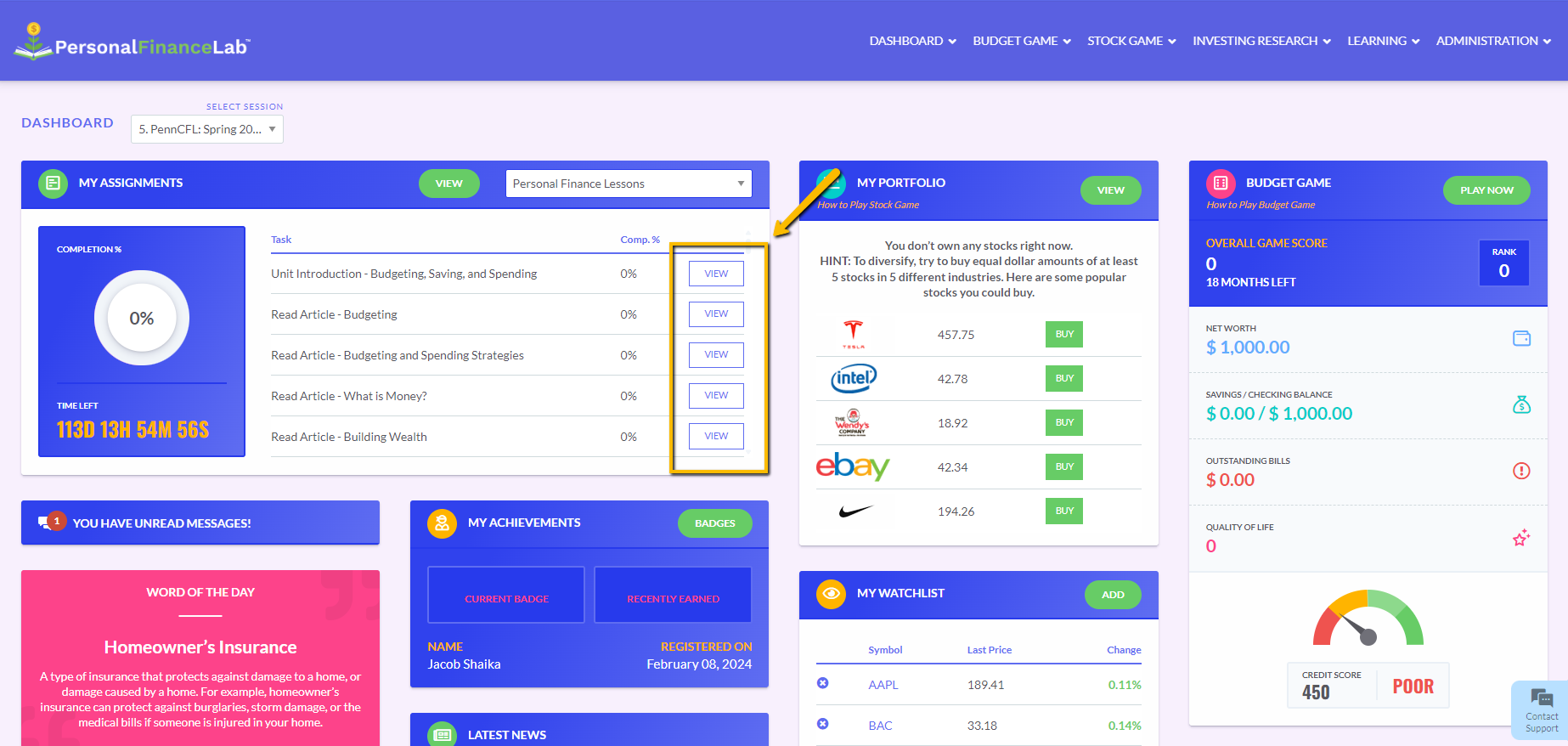
Click the View button to open the individual lessons. For instance, Unit Introduction – Budgeting, Saving, and Spending or Read Article – Budgeting.
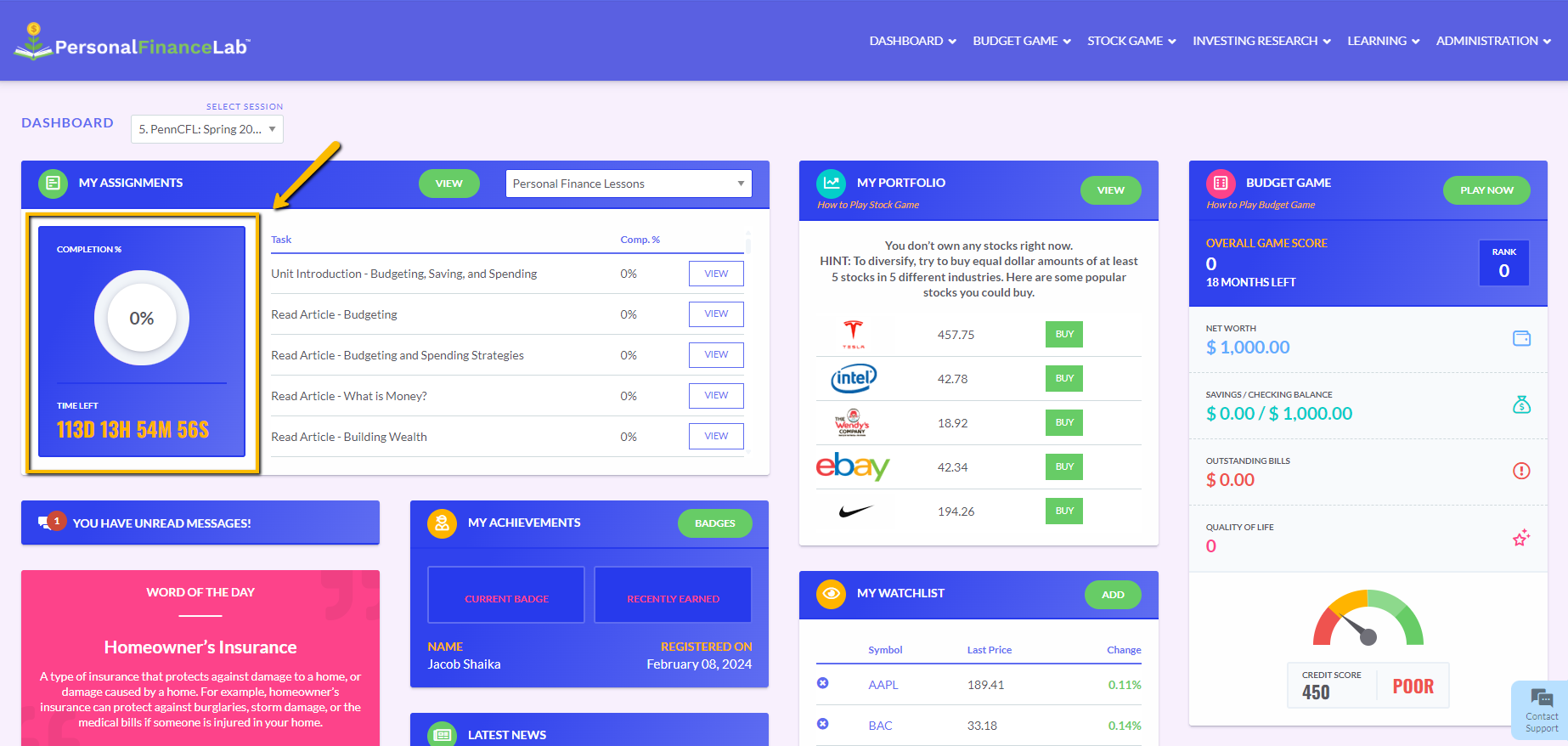
This completion tracker will update for each assignment you choose from the dropdown menu based on how much of the lessons in each assignment you’ve completed.
-
My Portfolio Widget
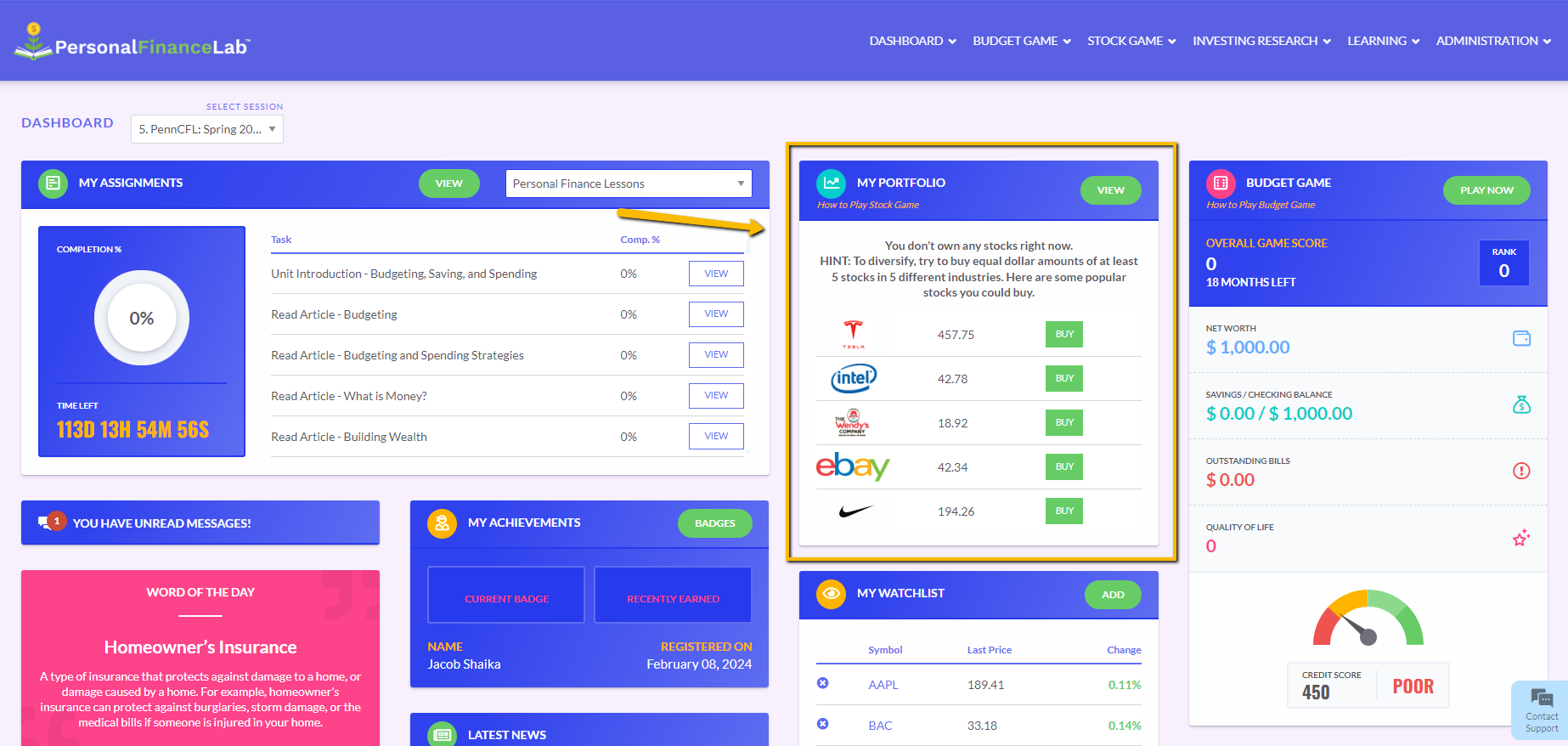
If your session includes the Stock Game, the My Portfolio widget will be displayed here.
This widget will display your holdings once you’ve invested in stocks, bonds or mutual funds, (depending on what is included in your session).
If you haven’t invested in anything yet, this widget will display different stocks that other users on PersonalFinanceLab are holding.
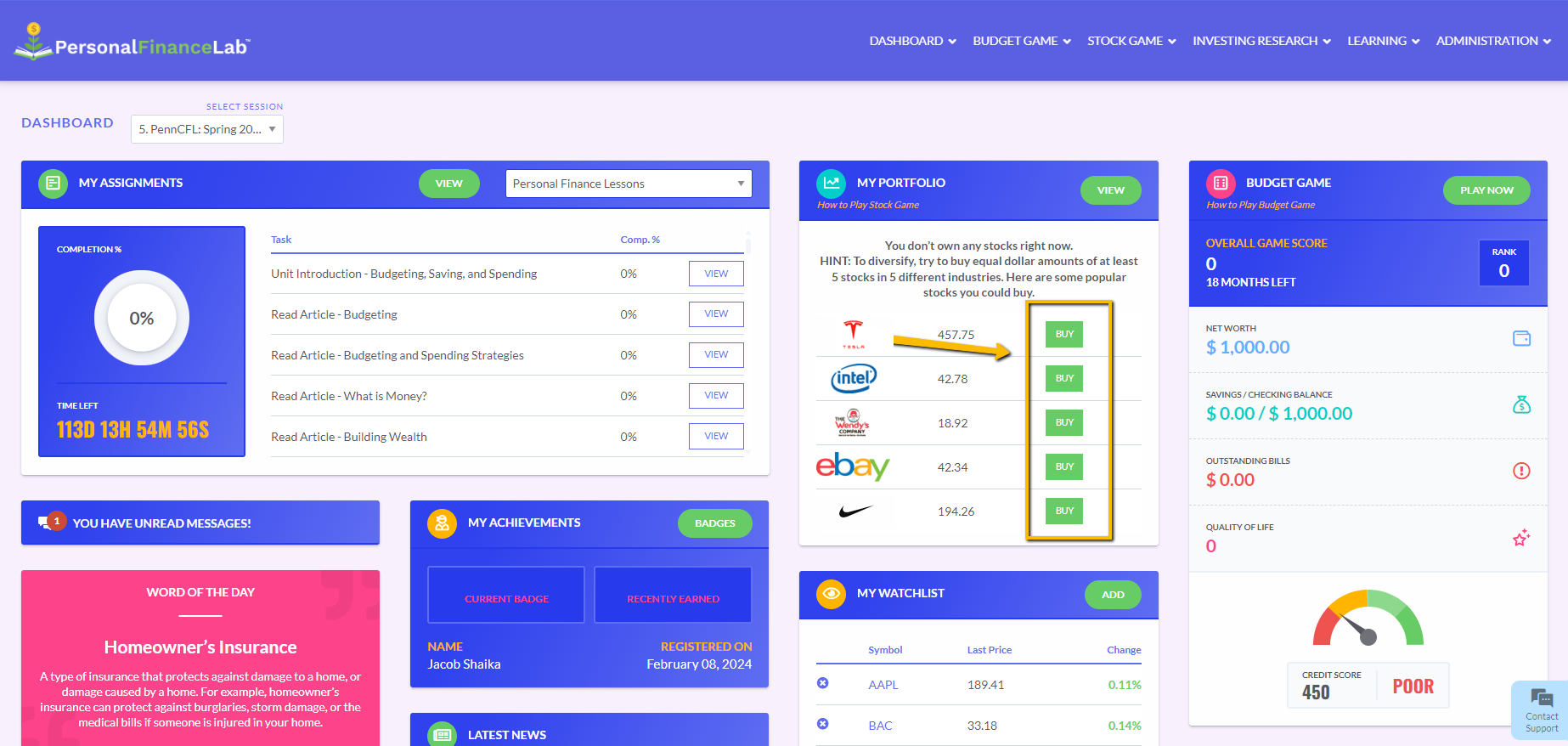
By clicking Buy you will be taken to the stock trading page. Once you are on that page, you’ll be able to choose how many shares you want to buy.
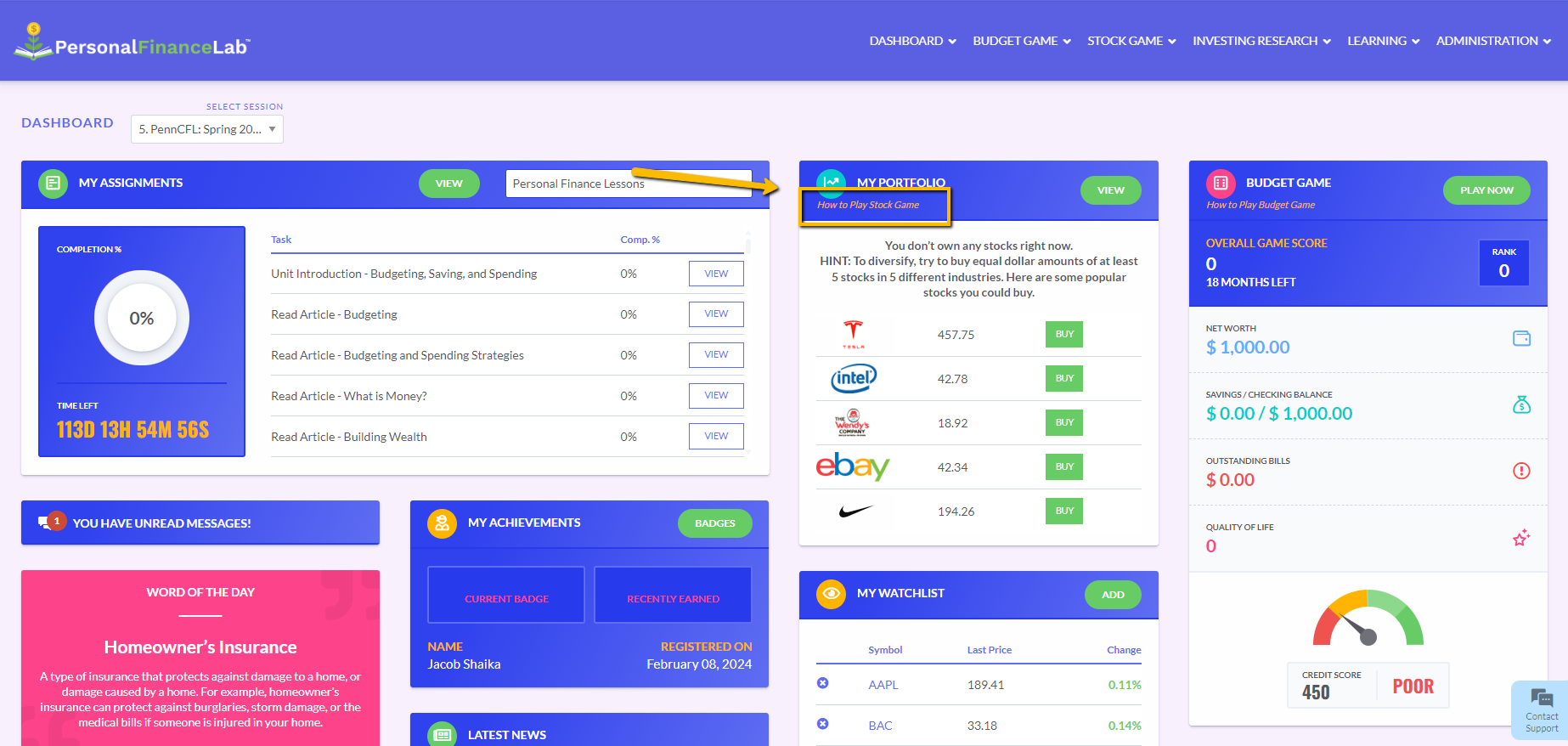
Clicking View will take you to the Open Positions page. There you will get more detailed information about how well your holdings are performing.
-
Budget Game Widget
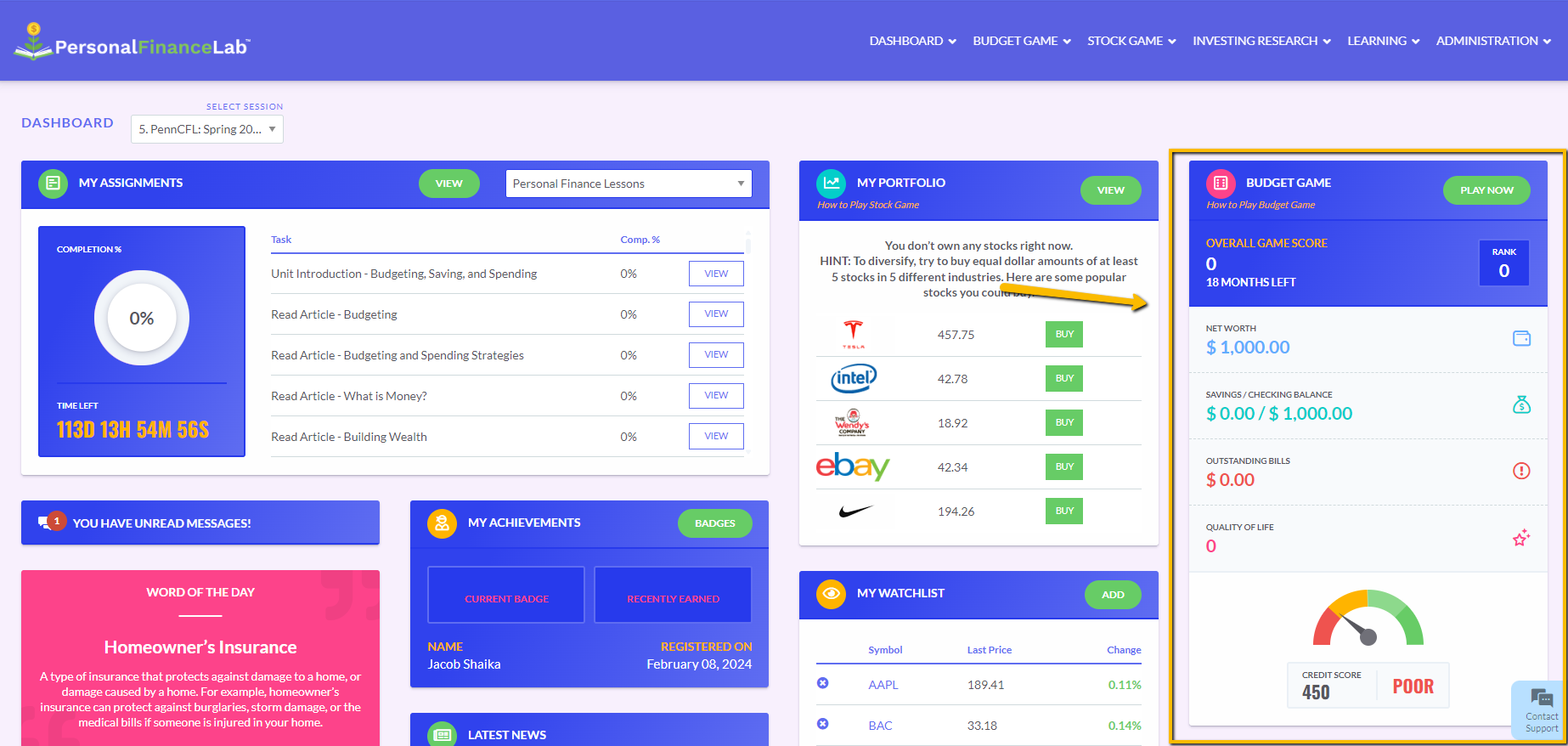
If your session includes the Budget Game, you will see this summary widget that includes all your stats and ranking.
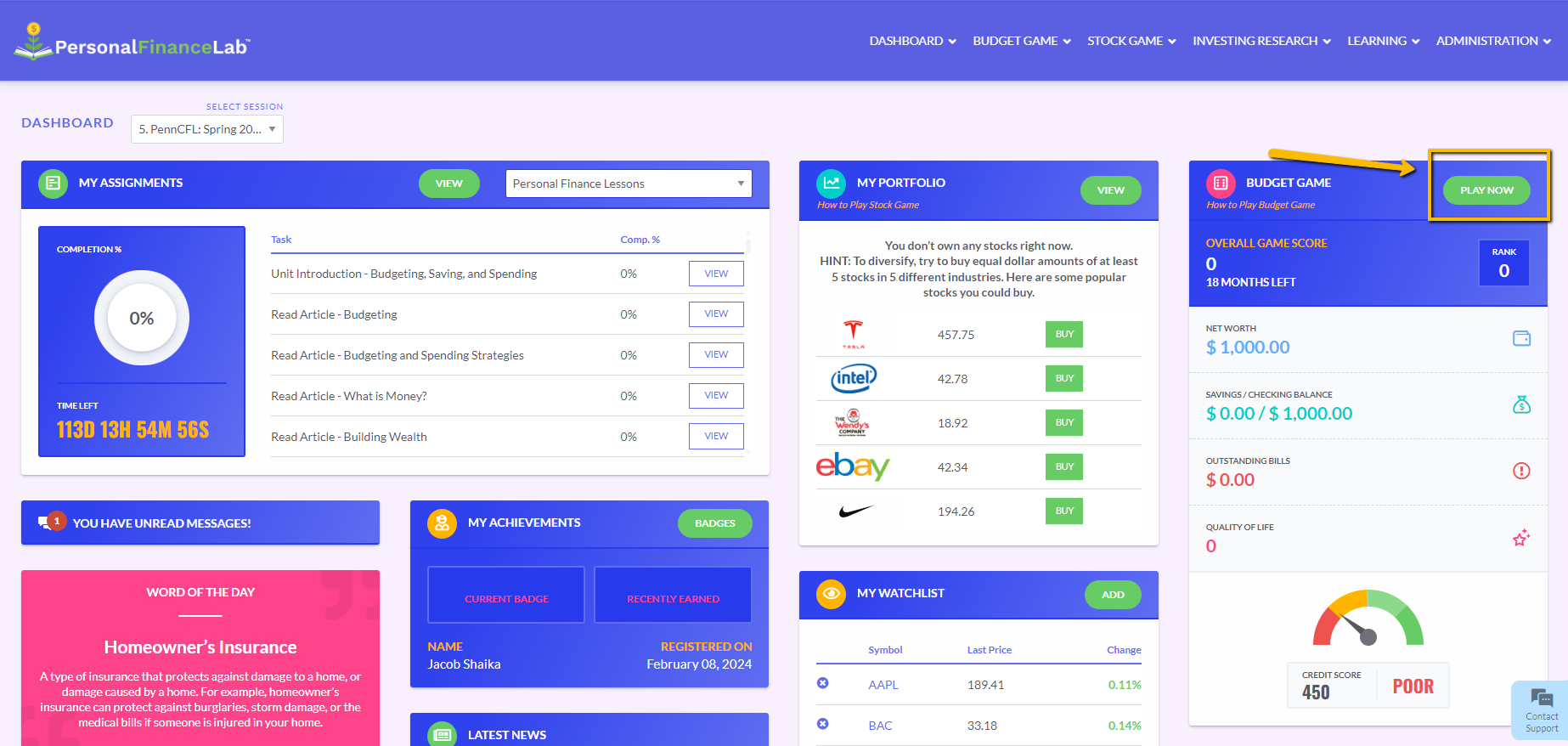
Click Play Now to go to the Budget Game page.
-
Other Widgets
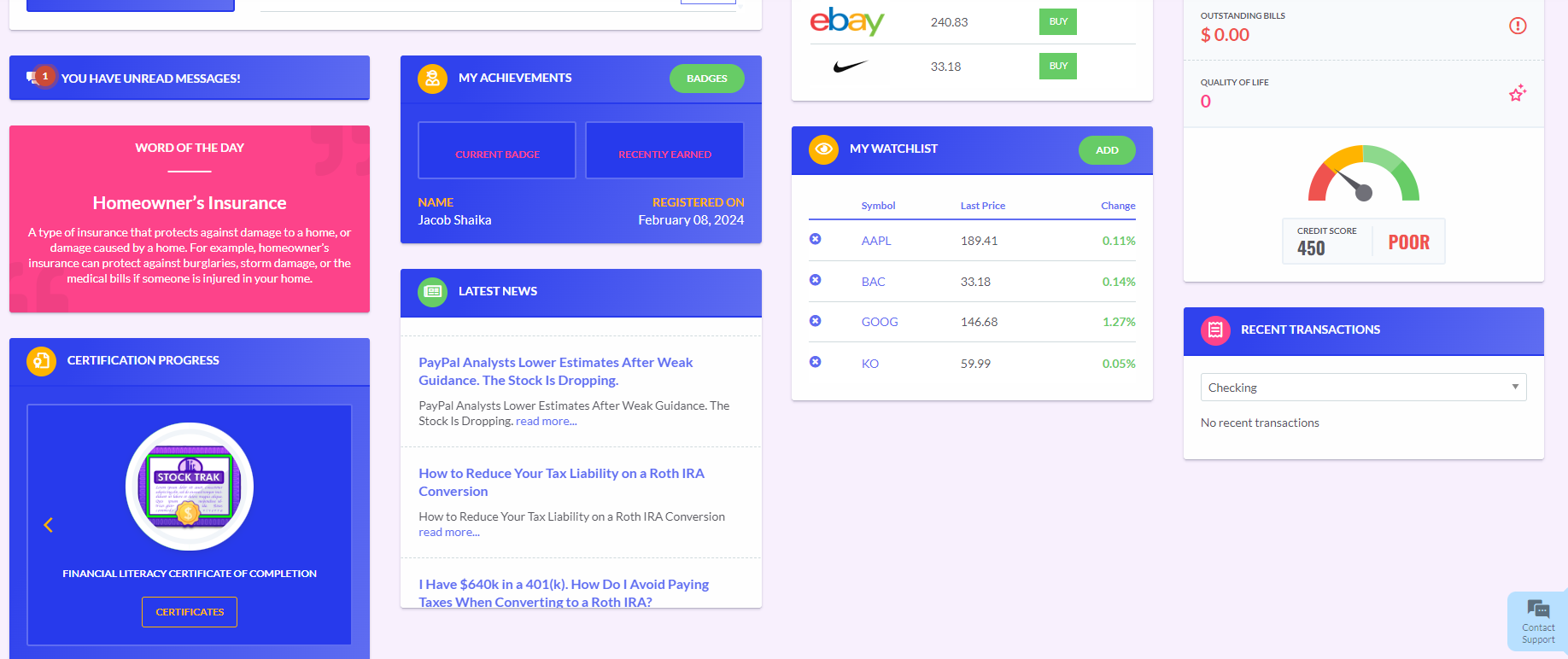
Other widgets on the Dashboard include:
- Word of the Day: including key terms on personal finance, investing and economics.
- My Achievements: you earn badges by playing the Budget Game and Stock Game or by completing lessons. You can view the badges you’ve earned by clicking Badges.
- My Watchlist: add/remove ticker symbols you want to track before investing in them.
- Recent Transactions: access a list of recent transactions in your checking or savings account from the Budget Game.
- Certification Progress: if your session includes them, you can see what lessons or actions you must complete to earn a certificate.
- Latest News: pulls a cross-section of business and economic news from reputable financial publications.
Budget Game Menu
-
Play Budget Game Button
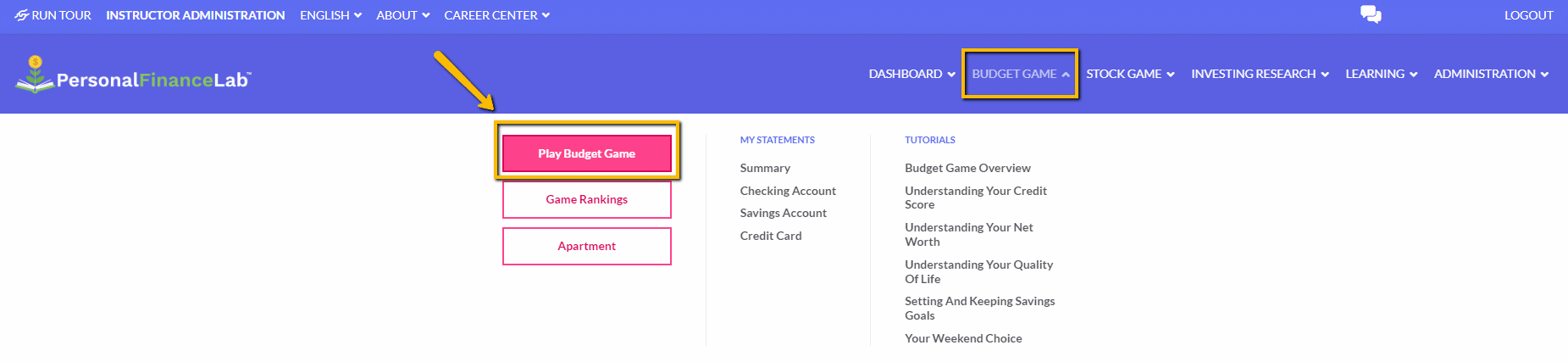
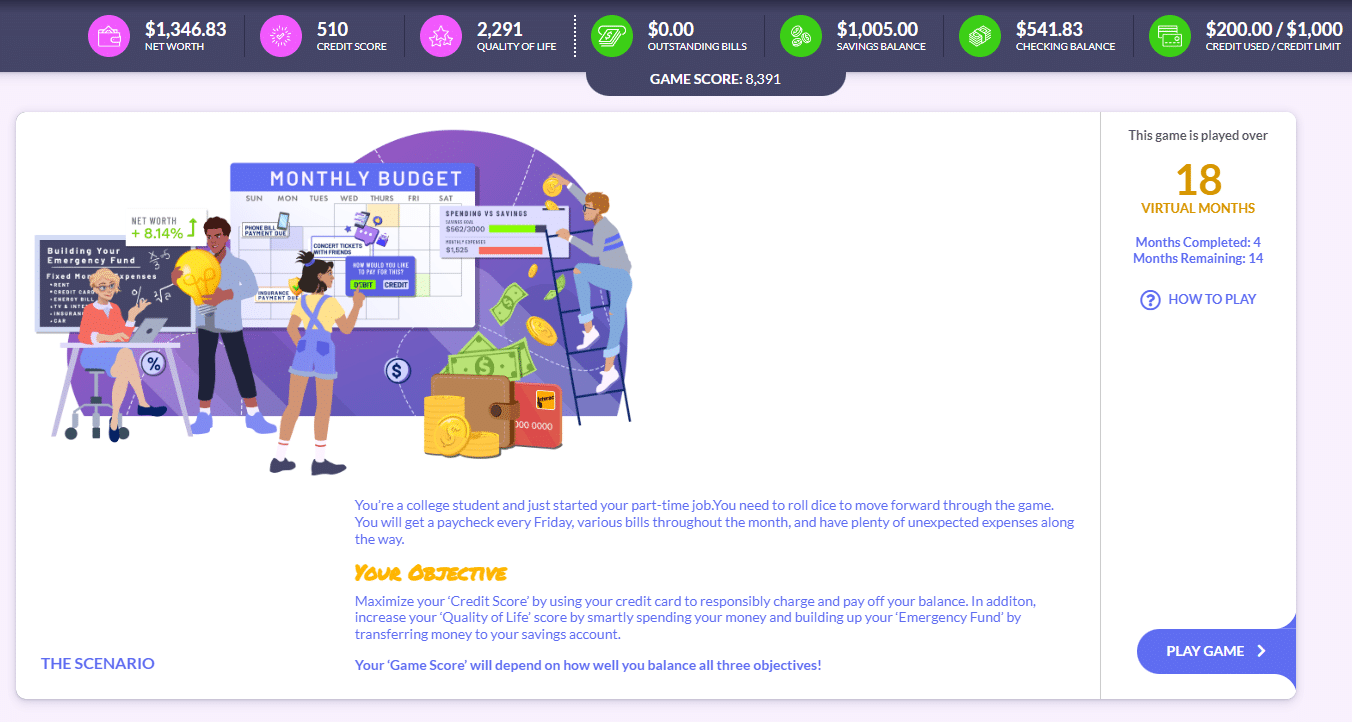
To access the Budget Game from anywhere on site, click the Play Budget Game button from under the Budget Game tab on the main menu.
-
Game Rankings Button
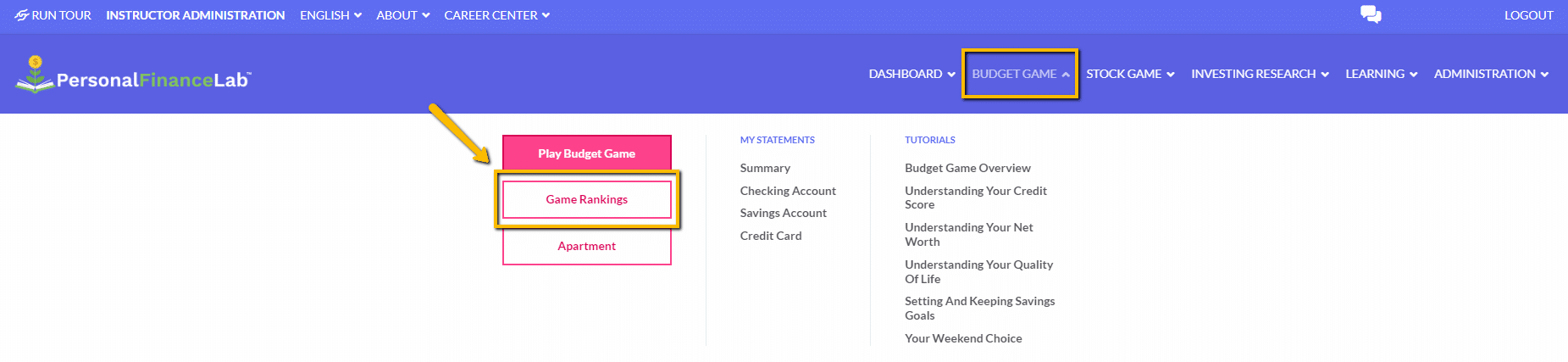
Click Game Rankings to compare your game scores against everyone else in your session.
-
Apartment Button
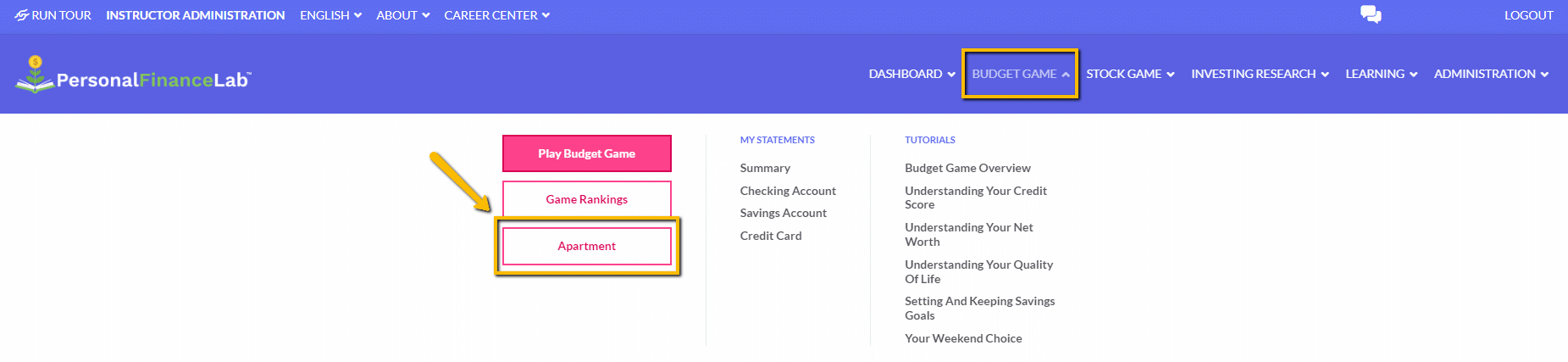
If the Apartment feature is enabled in your session, you can click the Apartment button to view your apartment and buy furniture, decorations, or appliances to make it your own.
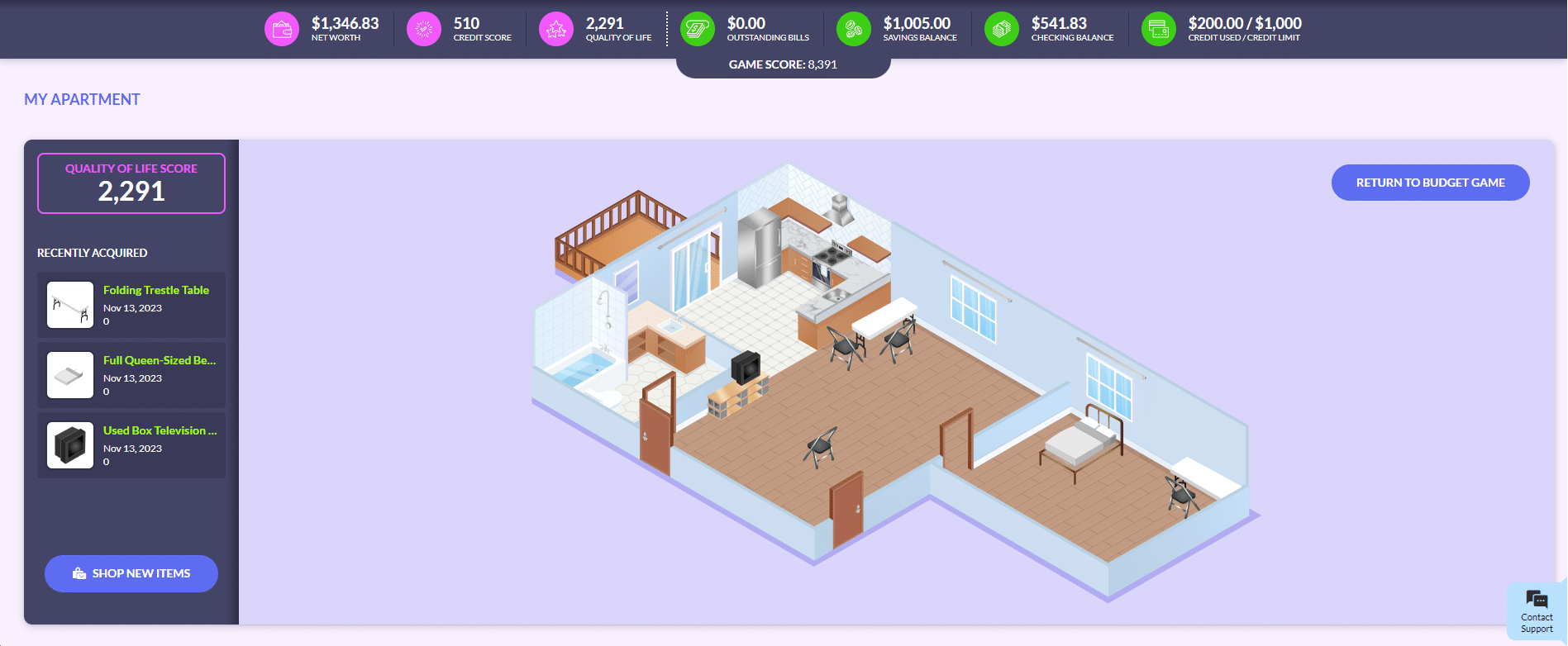
Click Shop New Items to browse by category: balcony, bathroom, bedroom furniture etc.
-
My Statements
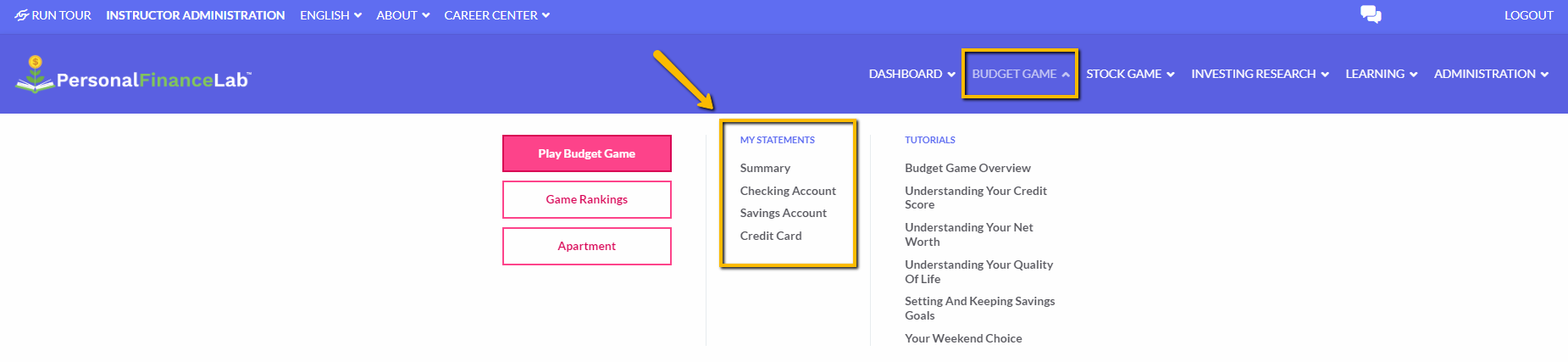
View and export your financial statements from the Budget Report Summary pages. From the Summary page you’ll see your games scores, as well as detailed breakdowns of your net worth, quality of life and credit score.
-
Budget Game Summary Page
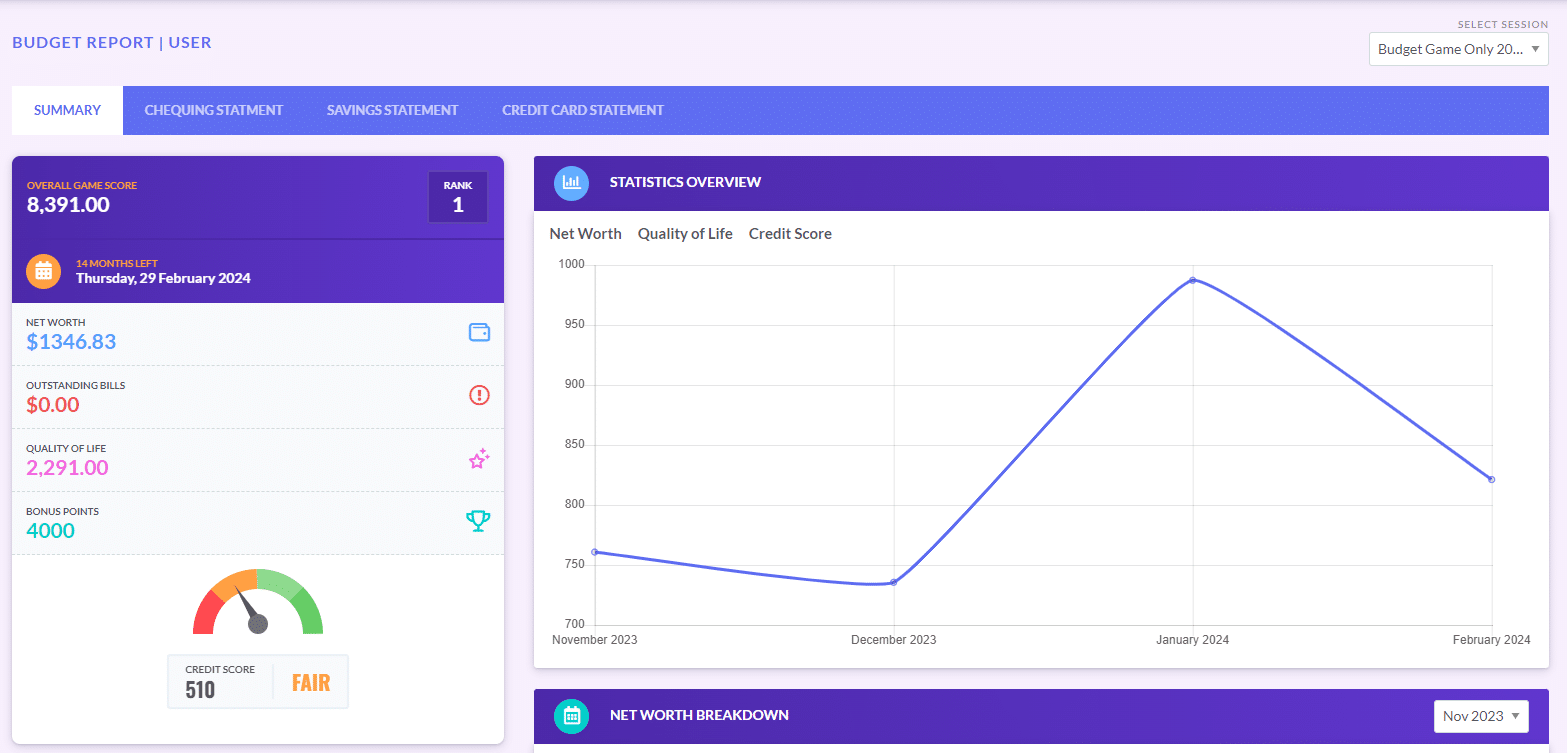
Use the tabs at the top of the page to toggle between your summary page, checking statement, saving statement and credit card statement.
-
Budget Game Tutorial Videos
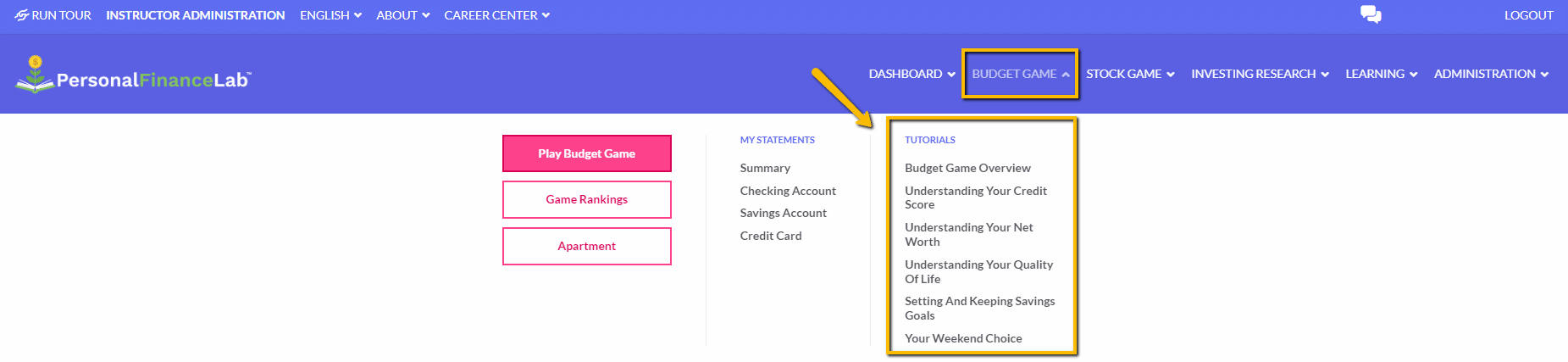
The tutorial videos cover all the main concepts covered in the Budget Game if you ever need any help.
Stock Game Menu
-
My Portfolio
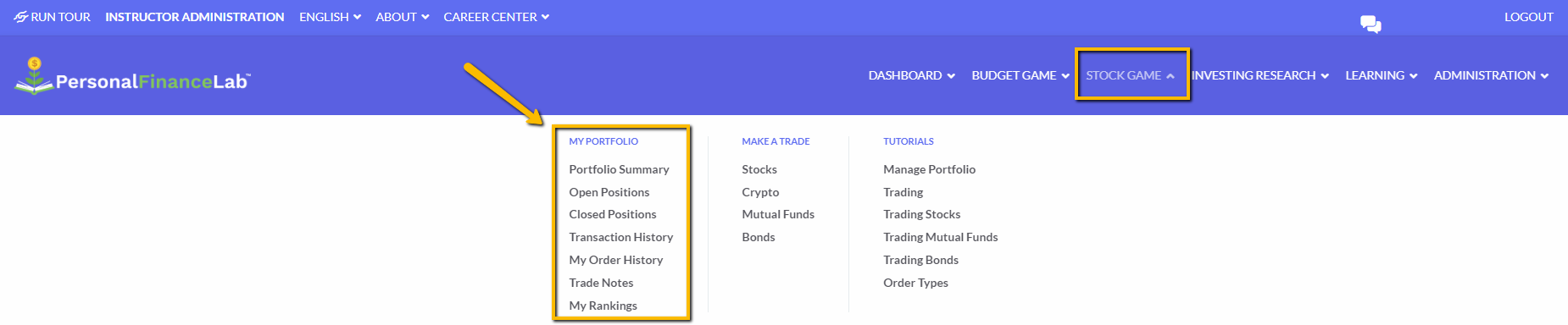
Under the Stock Game menu you’ll find all the My Portfolio tools to track and analyze your virtual portfolio. Here is an overview of each page:
- Portfolio Summary: view your account balances, the session rules and chart your portfolio to various indices (e.g. S&P 500).
- Open Positions: view your current holdings as a standard chart, or as a 1-day, 30-day or 1-year chart. View more details below.
- Closed Positions: use this page to get a profit/loss statement for each symbol you’ve closed or sold.
- Transaction History: view all transactions over a specific period. You can filter to view only dividends, buyouts, trades only or spots.
- My Order History: view your open, filled, cancelled, or expired orders from this page.
- Trade Notes: view and export your trade notes per order (buy and sell).
- My Rankings: the most popular page on the site, view how your portfolio is performing compared to everyone in your session. View more details below.
-
Open Positions Page
Go to Open Positions
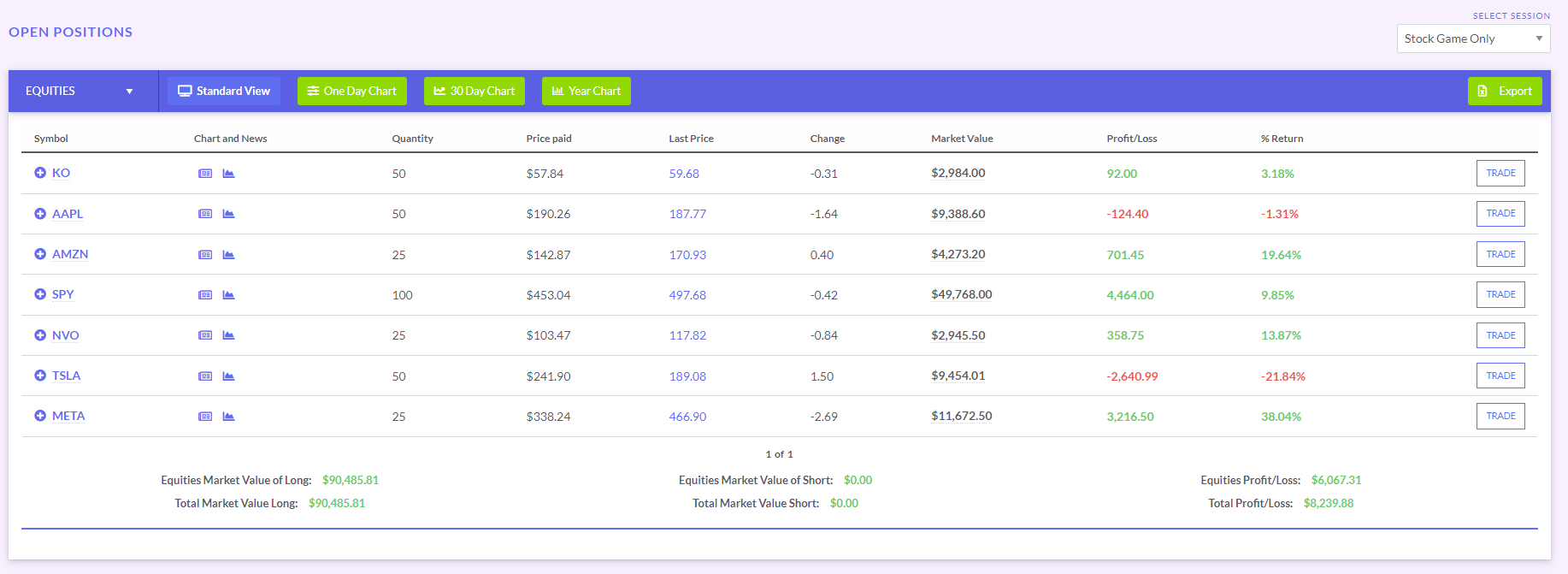
The Open Positions page provides detailed information for each asset you hold. If you’re holding more than stocks, choose the security type from the dropdown menu. By default, you’ll go to the Equities page.
Click the Plus (+) Button beside the ticker symbol to get more information about how each company is performing.
Click Trade to be redirected to the trading page, where you can either close out your position, sell a portion of your trades or buy more.
-
Rankings Page
Go to Rankings Page
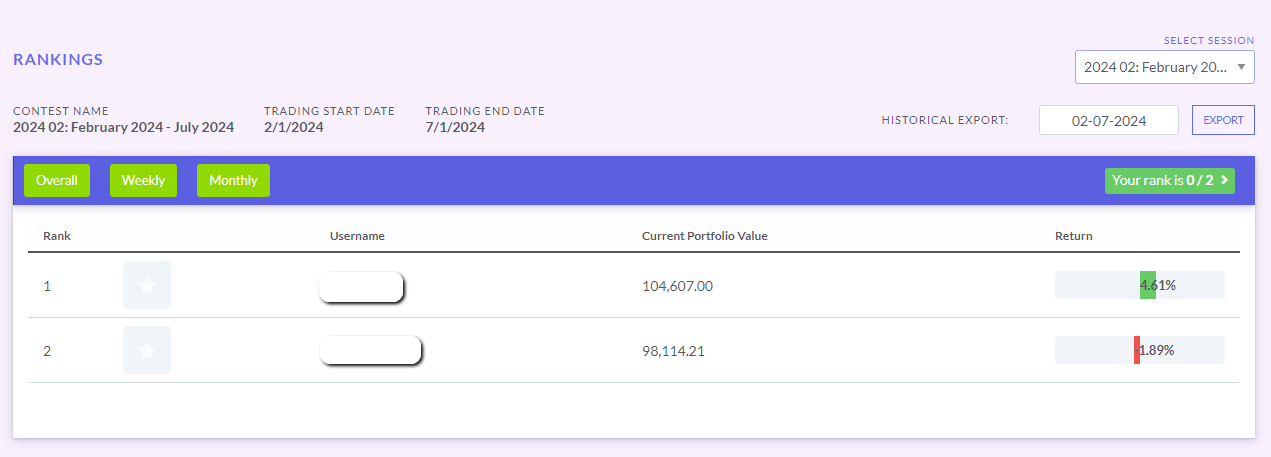
From the Rankings page you can use the filters to view the Overall, Weekly or Monthly rankings. You can also select a specific date and export to Excel or Google sheets.
-
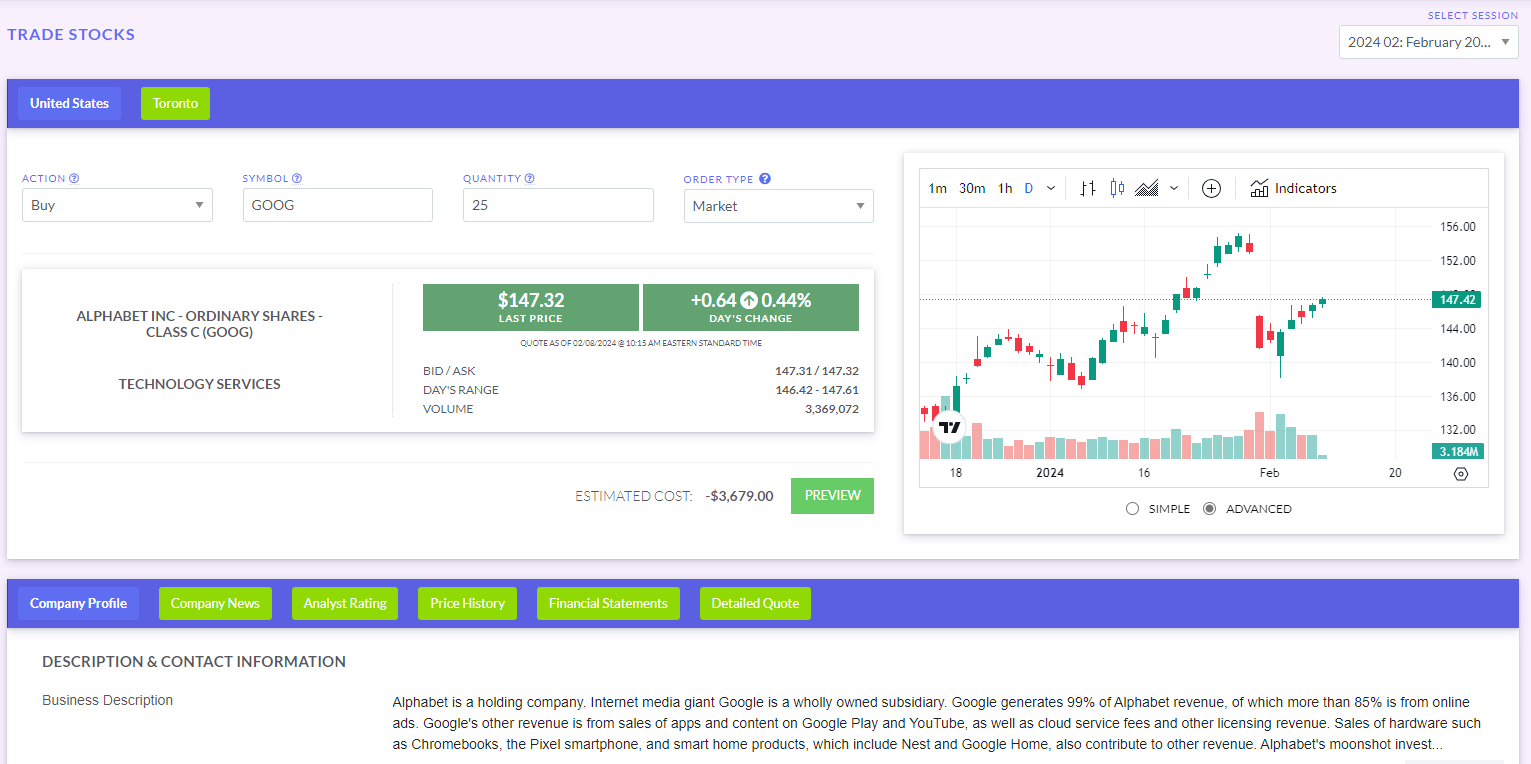
Make a Trade Pages
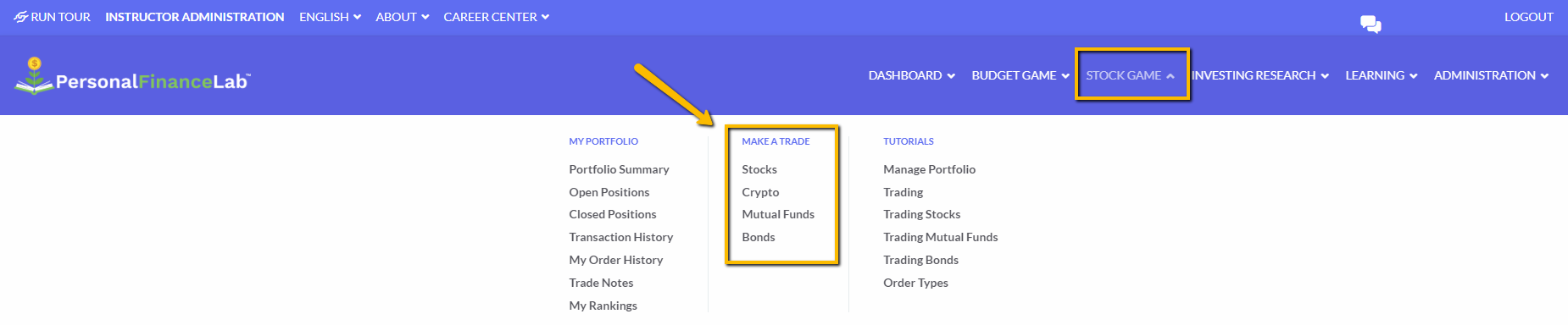
Depending on what securities were enabled in your session, you may see different options available on this list. Click Stocks to go to the stock trading page.
-
Stock Game Tutorials
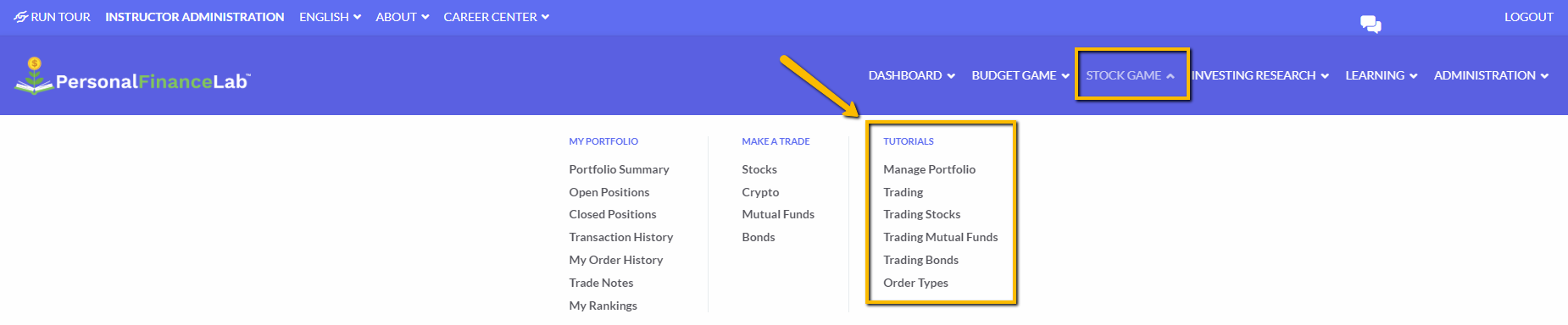
The Tutorial videos will update based on the securities that are enabled in your session. These videos are a good place to get started if you need any help!
Investing Research Menu
-
Markets
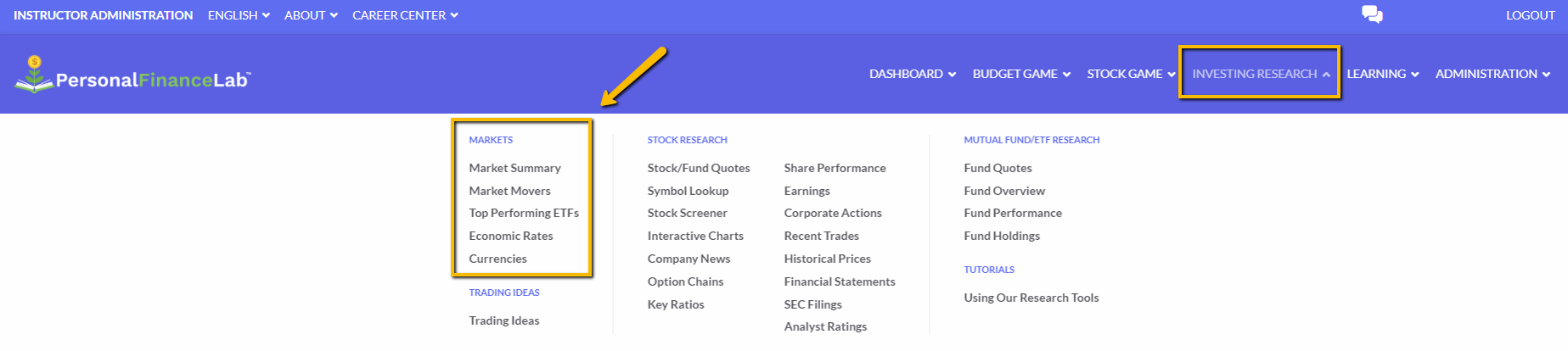
To get an overview of how the markets are performing as a whole.
-
Trading Ideas
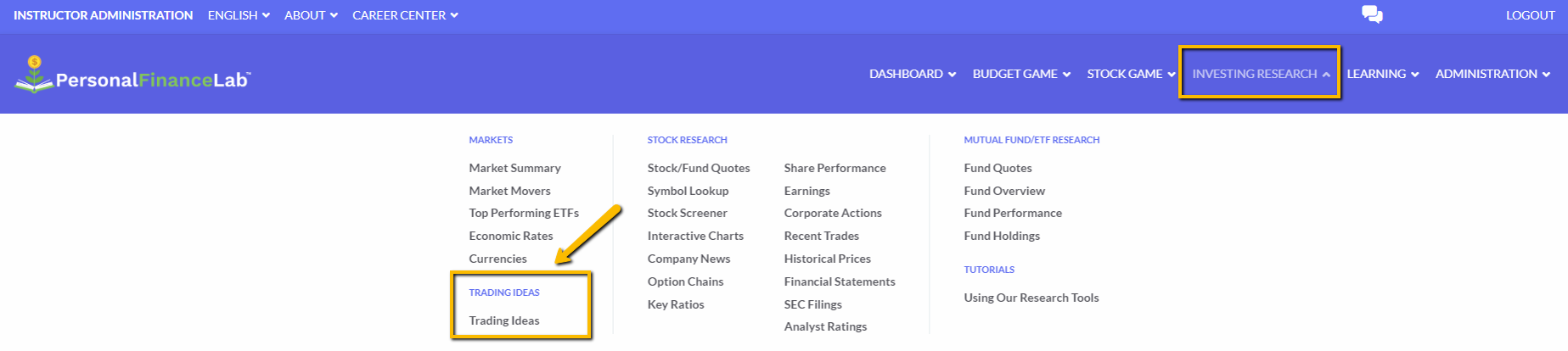
Use the Trading Ideas page to get stock, ETF and mutual fund ideas.
-
Stock Research
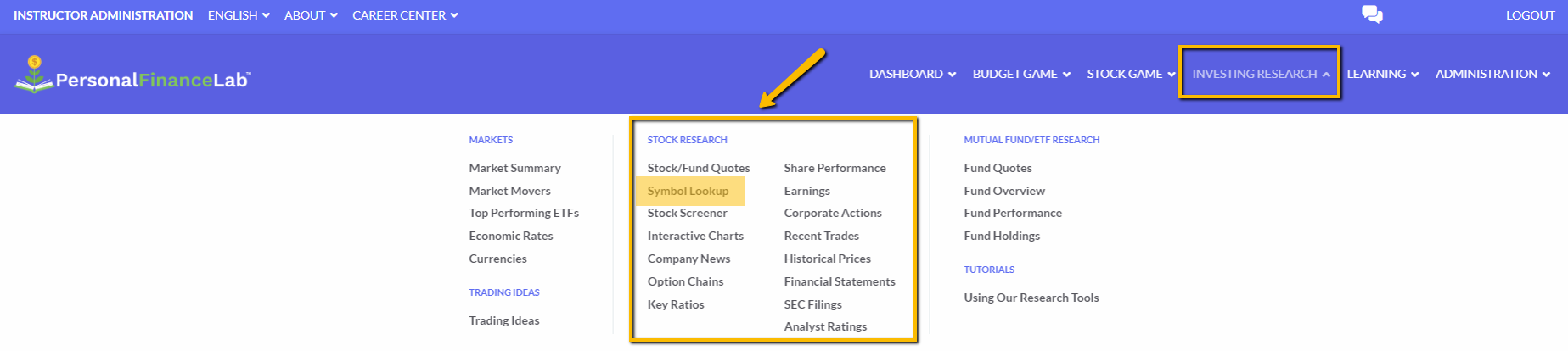
You can perform all your research on PersonalFinanceLab before choosing a company to invest in.
We recommend starting with the Symbol Lookup page, where you can enter the name of any publicly traded company in the United States to view detailed financial information.
-
Fund Research
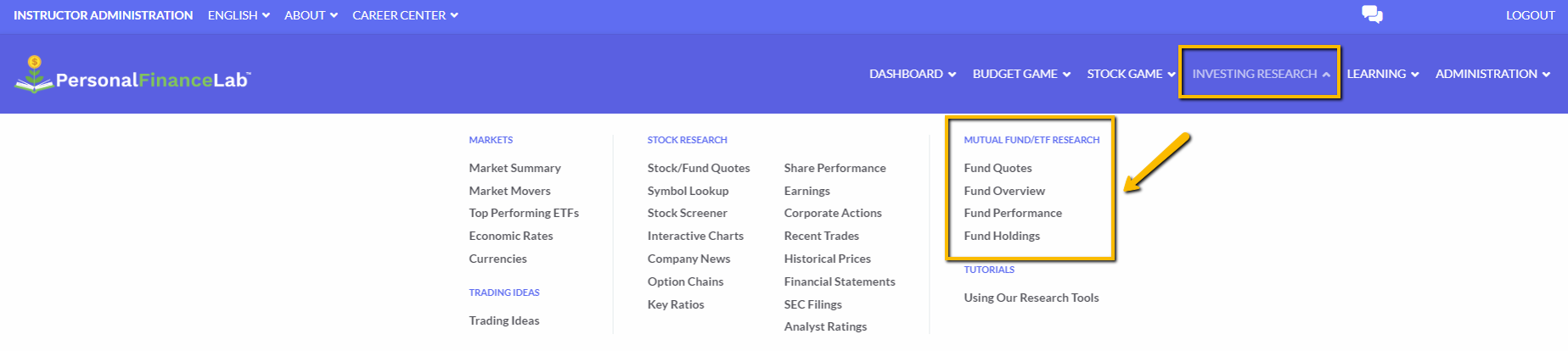
To get information specifically about exchange-traded-funds (ETFs) or mutual funds, use the Fund Research pages.
-
Research Tutorial
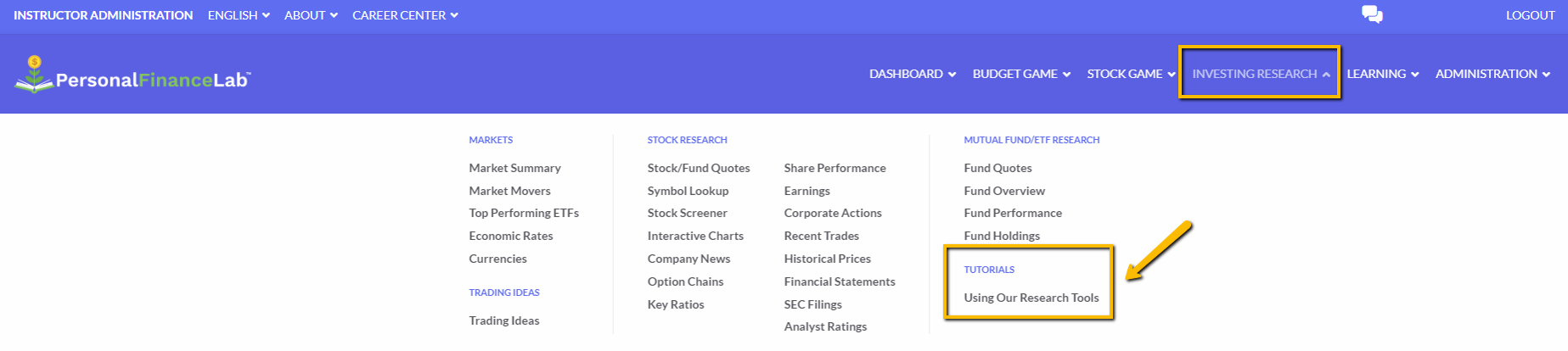
Watch the tutorial video on Using Our Research Tools if you require any assistance.
Learning Menu
-
Assignments

Under the Learning menu, you can view the Active or Expired assignments that were included in your session.
-
Active Assignments
Go to Active Assignments
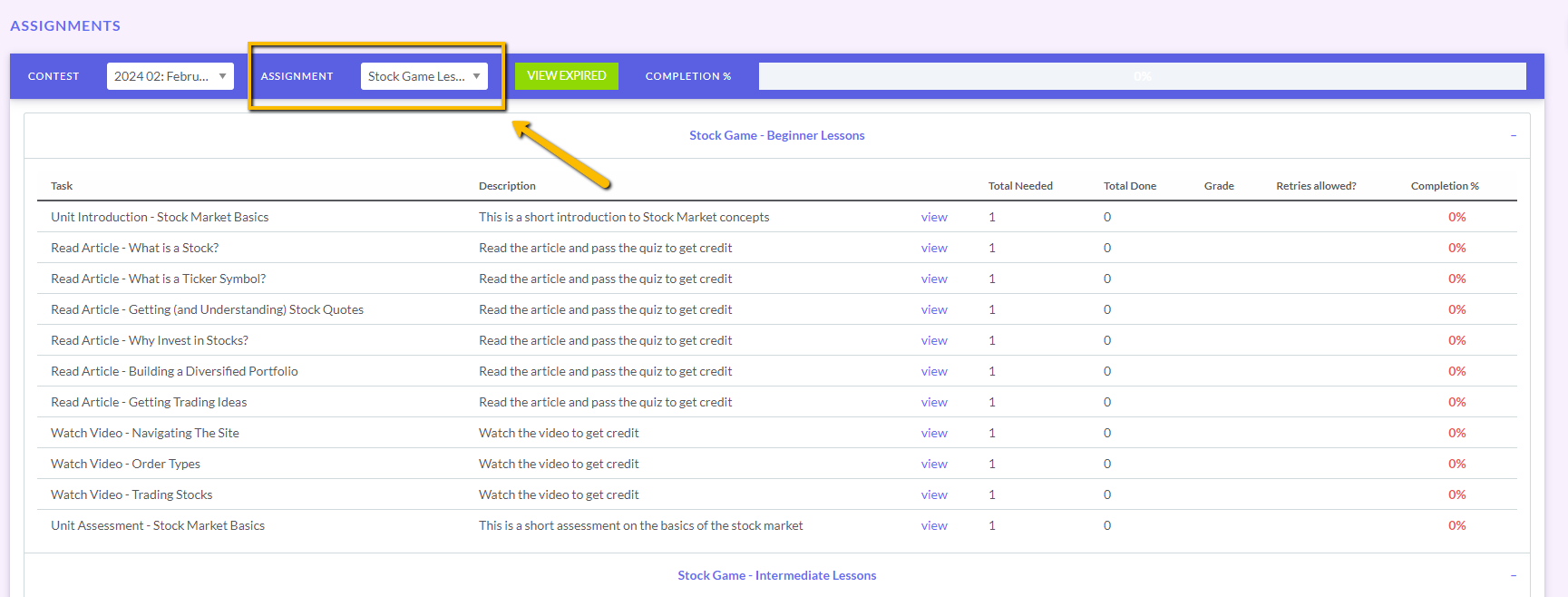
Use the Assignment dropdown menu to view the different assignments that were created in your session.
-
Learn Center

PersonalFinanceLab has over 300 lessons on personal finance, investing, economics, business and over 500 glossary terms that you can access from the Learning Center.
Customer & Technical Support
Please contact our Helpdesk if you need any further assistance.
 support@personalfinancelab.com
 1-514-871-2222
 Live Chat 9AM to 5PM EST