Budget Game Resource Packet
The Budget Game Teacher Packet provides all the resources and information necessary for teachers to effectively use the Budget Game in their classrooms. It includes tutorial videos to help students understand how to play the game, grading rubrics for assessing student performance, and personal finance slideshows that reinforce key concepts covered in the game.
To help your students get started, here is the Student Guide made specifically for them!
Please use the Teacher Resource Packet for help with site navigation, details about your instructor account, and for all our available learning materials.
Overview of the Budget Game
How to play the Budget Game
In this video, students will learn about the following features of the Budget Game:
- 0:08 – How to Access the Budget Game
- 0:26 – Setting Your Fixed Expenses
- 1:11 – Building Your Monthly Budget
- 1:26 – Upcoming Income
- 1:43 – Expected Cash Outflow
- 2:11 – Savings Goals
- 2:28 – Building Your Emergency Savings Fund
- 2:50 – Pop-up Choice Cards. Random Unplanned Expenses
- 3:09 – Pop-up Choice Cards. Needs vs. Wants (Balancing Quality of Life)
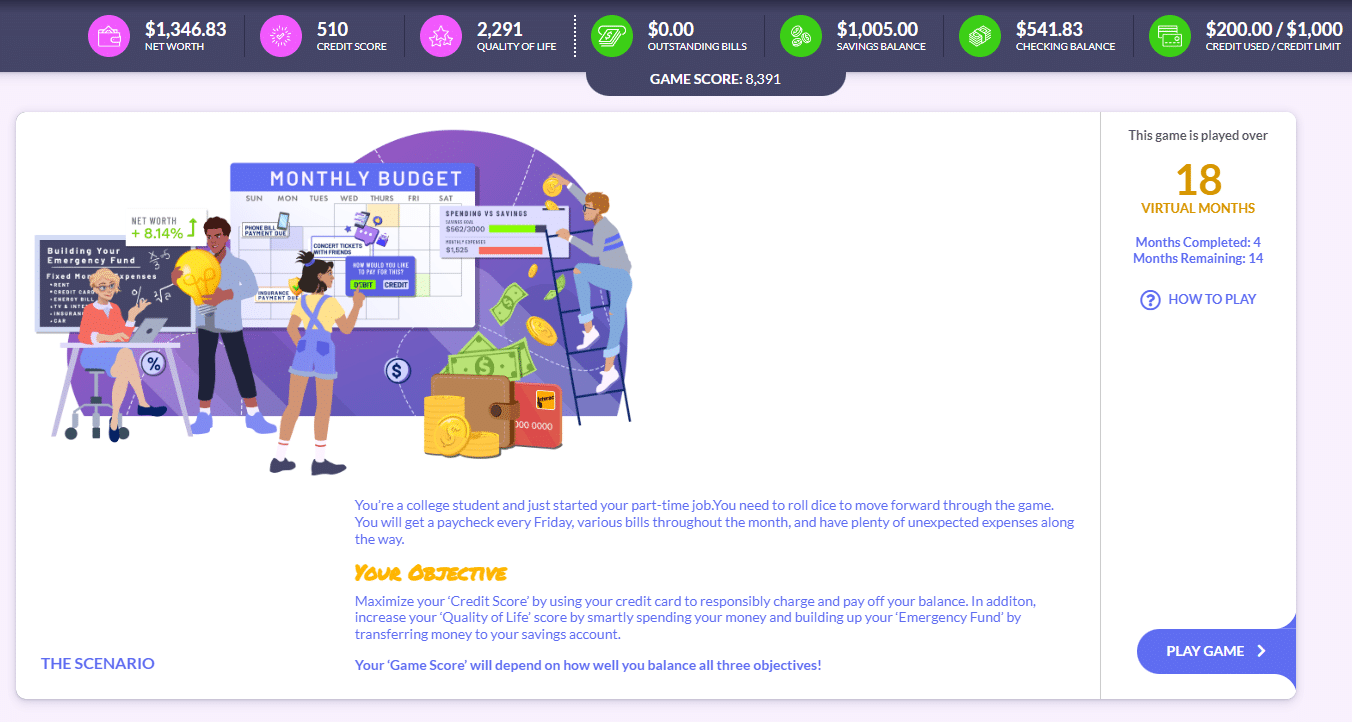
Alternatively, students have the Budget Game Tutorial slideshow they can access from the Budget Game page.
Share this link with your students to access it directly: How to play the Budget Game
Student Objective
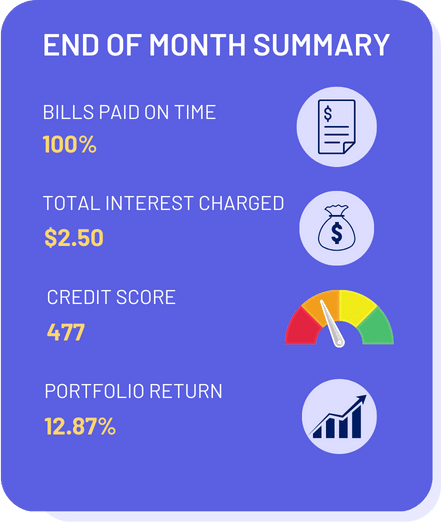
The objective of the game is to maximize your Credit Score by using your credit card responsibly, increasing your Quality of Life score by spending your money on things that maximize your well-being, and building an Emergency Fund by transferring money to your savings account.
Your Game Score will depend on how well you balance all three objectives!
Students start the game as either a college student with a part-time job, or as a full-time professional. Alternatively, your session may be set-up where students start as college students, then they graduate and take on full-time jobs.
To play the game, students need to roll the dice to move forward. They receive a paycheck every Friday, various fixed and variable expenses, and many unexpected bills and life events along the way. They will also have pop-up lessons that cover basic personal finance topics like, mortgages, opportunity cost or needs vs wants.
Budget Game Tutorial Videos
Additional tutorial videos are available for each major aspect of the game.
Grading the Budget Game
The following class activities include grading rubrics and student worksheets so you can easily grade the time your students spend playing the Budget Game.

Budget Game Project – Grading Rubric
Budget Game Midpoint Review – Grading Rubric

Budget and Stock Game Final Report and Presentation – Grading Rubric
Personal Finance Slideshows
If you’re looking for ways to tie the Budget Game into your classroom, here are some personal finance slideshows that reinforce core personal finance concepts that are also covered in the game. All the material was designed to align with the Jump$tart National Standards.
Budgeting & Spending
Budgeting
Budgeting and Spending Strategies
Family Planning
Managing Bills
Reconciling Accounts
Researching Purchases
Spending Plans
Buying a Car
Classification of Products & Services
Planning Long-Term Purchases
Credit & Debt
Income, Career Planning & Tax
Post High School Education
Work Vs Study
Income tax Filing & the 1040
Sales Tax
Basics of Payroll Accounting
Financial Risks & Insurance
FAQs
-
How long does it take to play the Budget Game?
The Budget Game takes approximately 20 minutes to complete per virtual month in the game. We include 12 months in the National Challenges that we host. So, it will take about 4 hours total to complete the whole game.
-
Is this in-class or homework?
Both! The Budget Game can be played anywhere with internet access. Since student progress saves as they go, they can spend time at the end of class playing the game, or they can complete all 12 (virtual) months at home. No two students have the same experience; so class discussions can be very insightful when they compare their monthly budgets.
-
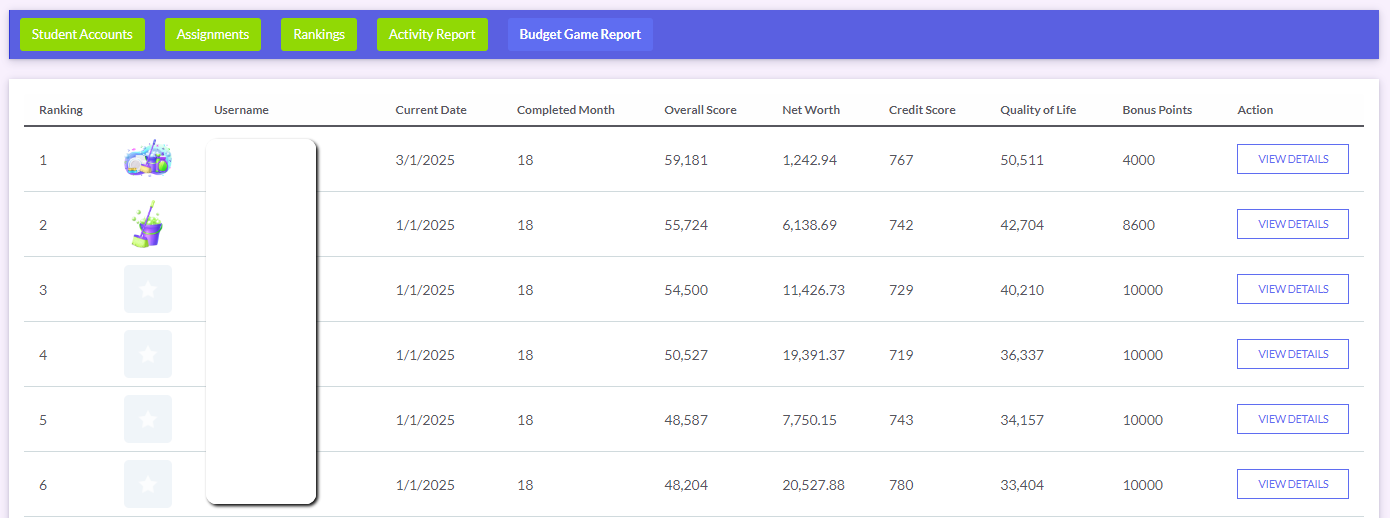
How can I track student progress or activity in the Budget Game?
From the Instructor Administration page, go to the Budget Game Report where you’ll be able to see all the transactions and scores per student.
-
What other learning materials do you have available?
Please reference the Teacher Resource Packet where you can access all our available learning materials, including:
-
Looking for Site Navigation?
Please also refer back to the Instructor Account Explainer Guide. There you will find detailed information about the user interface for instructor accounts, including:
As well as an overview of the Instructor Administration page, where you will be able to:
Customer & Technical Support
Please contact our Helpdesk if you need any further assistance.
 support@personalfinancelab.com
 1-514-871-2222
 Live Chat 9AM to 5PM EST