Stock Game Resource Packet
The Stock Game Teacher Packet provides an overview of the Stock Game and includes various resources and activities to help teachers effectively incorporate the game into their classrooms. The packet covers topics such as basic research and comparing stocks, how to play the Stock Game, how to research stocks, grading rubrics for assessing student performance, and investing and economics slideshows.
To help your students get started, here is the Student Guide made specifically for them!
Please use the Teacher Guide for help with site navigation, details about your instructor account, and for all our available learning materials.
Overview of the Stock Game
How to Play the Stock Game
In this video, students will learn about the following features of the Stock Game:
- 0:08 – My Portfolio Widget
- 0:24 – Getting Trading Ideas
- 0:31 – Symbol Lookup
- 0:57 – Access Trading Pages
- 1:09 – Placing a Trade
- 1:45 – Order Types
- 1:54 – Trading Tutorial Videos
- 2:04 – Preview Order & Adding Trade Notes
- 2:30 – Stock Game Menu
- 2:37 – Portfolio Summary Page
- 3:01 – Open Positions Page
- 3:50 – My Rankings
Basic Research and Comparing Stocks Activity
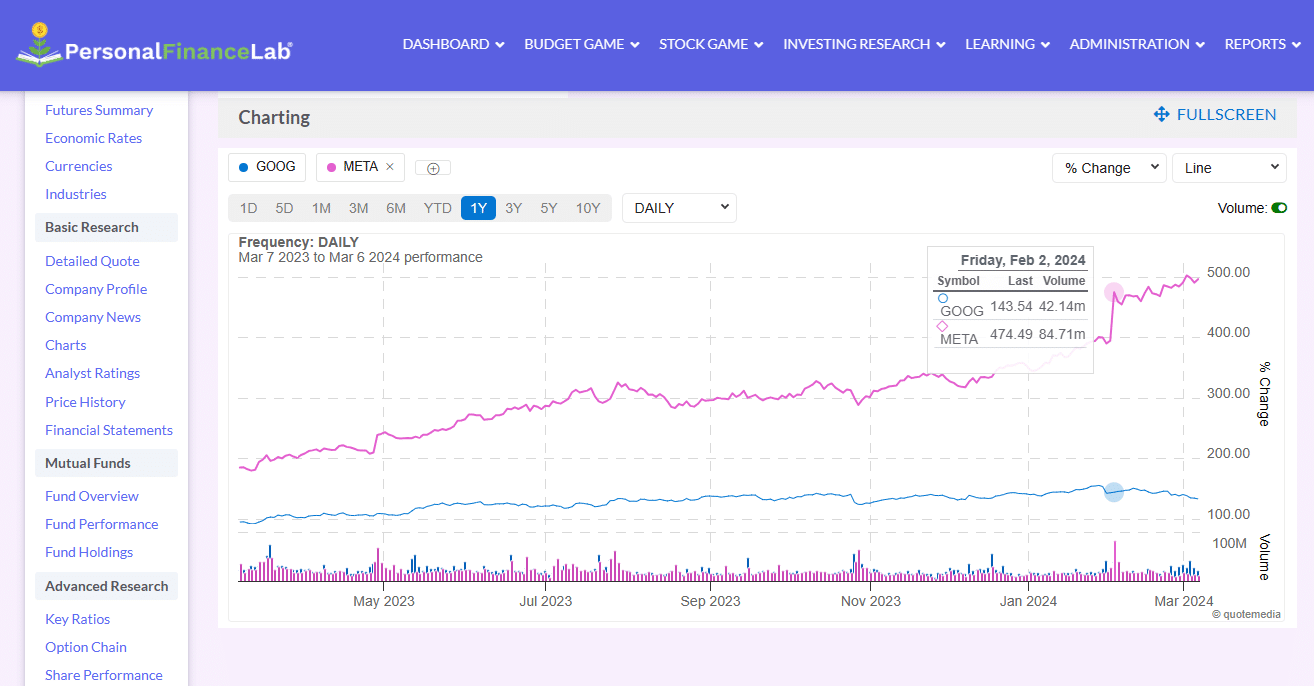
We recommend students start with this 12-minute interactive activity, Basic Research and Comparing Stocks. Students will be lead through a step-by-step process to help them figure out which companies or stocks to invest in first.
They’ll be introduced to the research tools available on PersonalFinanceLab.
Share this link with your students to get started!
https://app.personalfinancelab.com/content/index?url=basic-research-and-comparing-stocks2
Stock Game Basics
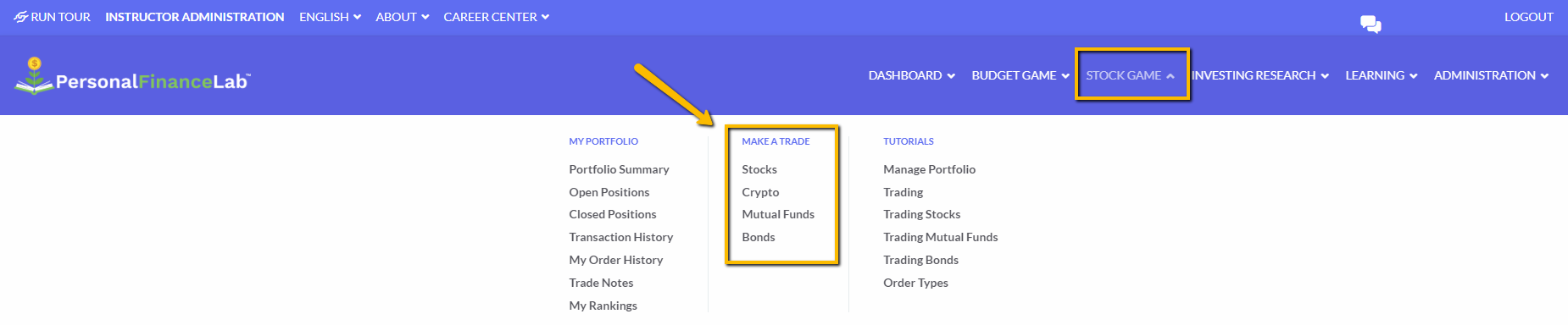
To trade any security type, go to Stock Game on the main menu and select which trading page you want to open. You must select the security type first to open the right trading page.
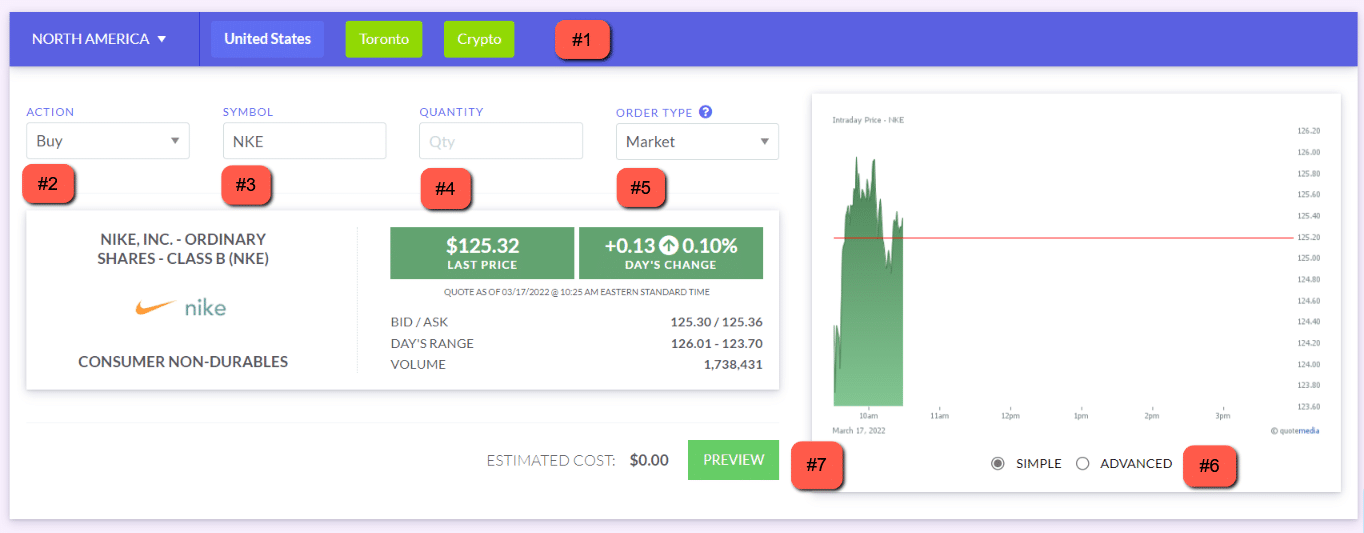
If it’s your first time on the site, a product tour will launch that will tell you all the main areas on the trading page. Here are the basics to help you get started.
- Exchange: By default, the U.S. Stock Exchange is selected from the North American region. You can choose another one by changing the region from the dropdown menu, (if international exchanges are enabled in your session).
- Action: Students can choose between; Buy, Sell, Short and Cover, however, most sessions do not allow short selling.
- Symbol: Enter the ticker symbol you want to trade. If you don’t know the symbol, you can use the Symbol Lookup page. This is available from under the Investment Research tab on the main menu.
- Quantity: The amount must always be whole numbers, you cannot enter a fraction or decimal.
- Order Type: For simplicity, you and your students may use the default “Market Order” to have your trades execute immediately while the market is open. You can also use Limit Orders, Stop Orders, Trailing Stop $ or Trailing Stop %. To learn more about how to use the different order types, watch our tutorial video Order Types.
- Charts: You and your students can use the simple or advanced charting feature to see the price fluctuations over time. Once you’ve entered the ticker symbol, additional company information will populate below the trading window.
- Preview: When you’re done entering the trading settings, click “Preview” to see the total cost with commission included. If you like the price, you’ll be prompted to enter a trading note. Click “confirm” to execute your order.
We also have a tutorial video on how to trade stocks, that goes through all the steps of placing a trade. Once your students know the basics, they can use our integrated research tools from the Quotes page to get more information on the companies they want to invest in.
How to Research Stocks
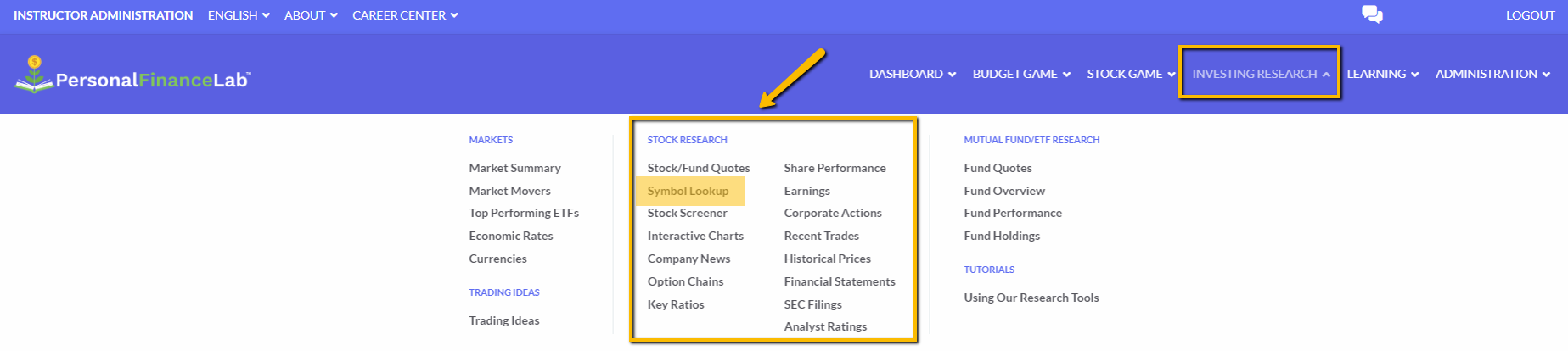
To access all the researching and quoting tools, go to the Investing Research tab on the main menu. From here you can see market summary information; like the biggest movers over the last 52 weeks, get detailed financial information on publicly traded companies, research mutual funds or get trading ideas.
If you know a company you’d like to invest in, but you don’t know the ticker symbol, click on Symbol Lookup, as shown in the screenshot below.
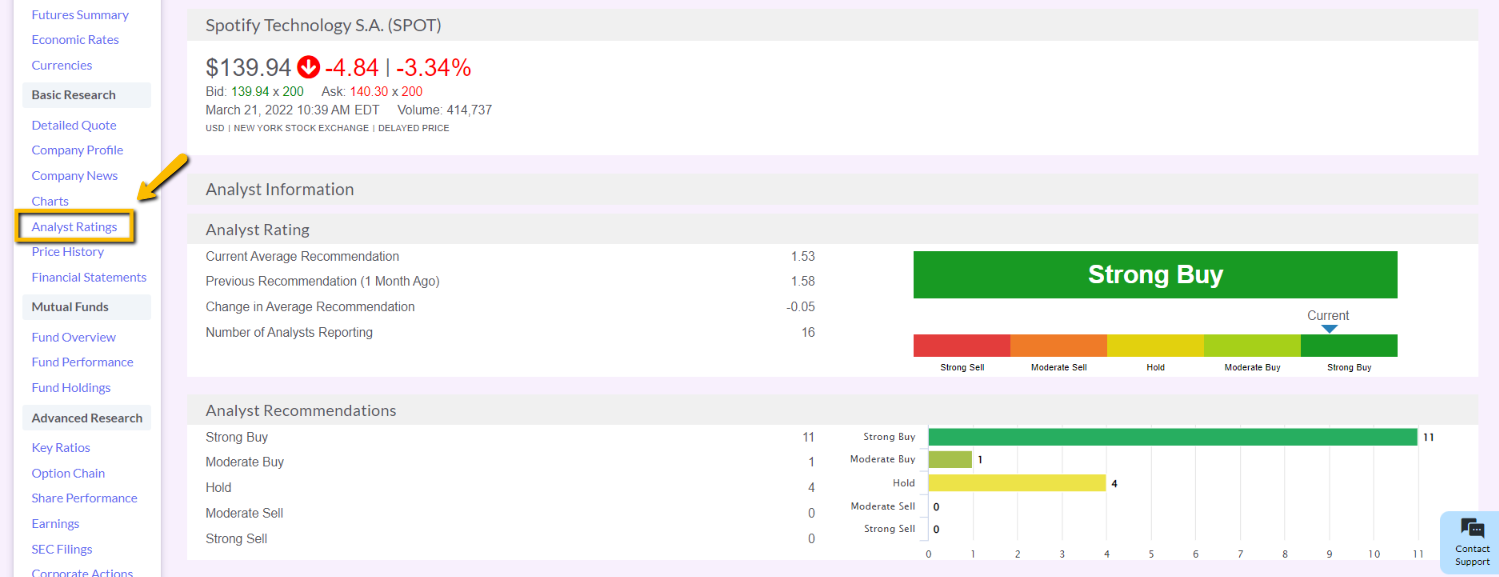
Once you’ve entered the company name, you’ll have access to the following information about their financial standing.
- Company Profile – who is this company and what do they do?
- Company News – news feed showing stories mentioning this stock; a great place to look to find out why their price is going up or down.
- Analyst Ratings – what is Wall Street saying about this stock? Buy, Sell, or Hold?
- Price History – a record of this company’s stock price going back to their original listing, with charts.
- Financial Statements – Income statements, balance sheets, cash flow statements going back 20 years.
- Detailed Quote – more metrics about this stock, like PE ratios, dividend yield, earnings per share, etc.
By clicking through the buttons on the left side panel you can see even more information before placing your trade or choosing to invest in another company. The trade button beside the search bar will take you back to the trading page with that ticker symbol pre-selected.
Grading the Stock Game
These class activities include grading rubrics and student worksheets for the Stock Game, so you can gauge how well students are learning from their experience managing their virtual portfolios.

Stock Game Portfolio Project – Grading Rubric

Personal Investing Strategy – Grading Rubric

Stock Game Investing Strategy Document – Grading Rubric

Budget and Stock Game Final Report and Presentation – Grading Rubric

Comparing Two Companies In the Same Industry – Grading Rubric
Investing & Economics Slideshows
If you’re looking for ways to incorporate the Stock Game and economics and investing concepts into your classroom, here are some slideshows that reinforce core principles covered in the game. These slideshows have been specifically designed to align with the Jump$tart National Standards and the CEE National Content Standards in Economics.
Investing
What is a Stock?
Ticker Symbol
Reading Stock Quotes
Portfolio Diversification
Getting Trading Ideas
Building an Investing Strategy
Bonds
Understanding Price Movements
Economics
FAQs
-
How long does it take to play the Stock Game?
The Stock Game takes more time in the beginning as students learn how to build their virtual portfolios. The time they spend watching tutorial videos and using the researching and quoting tools can vary depending on your students’ current understanding of stocks and the stock market.
Once your students are more familiar with the platform, it can take as little as 2-5 minutes per day to manage their holdings or check the Rankings page.
Check out this teacher interview where the 4th grade students from North Point School placed trades on the first day they were introduced to PersonalFinanceLab.
-
Is this in-class or homework?
Both! The Stock Game can be played anywhere with internet access. The real-time data used in this virtual simulation follows the regular hours of US stock exchanges (Monday to Friday 9:30AM to 4PM EST). So, if students are placing trades outside of these hours, their trades will execute at the next market open.
-
How can I track student progress or activity in the Stock Game?
From the Instructor Administration page, go to the Student Accounts tab.
Click on View Portfolio to get more detailed information per student on their open positions, transactions, detailed balance, and trade notes. This information can be exported or printed for your records.
-
What other learning materials do you have available?
Please reference the Teacher Resource Packet where you can access all our available learning materials, including:
-
Looking for Site Navigation?
Please also refer back to the Instructor Account Explainer Guide. There you will find detailed information about the user interface for instructor accounts, including:
As well as an overview of the Instructor Administration page, where you will be able to:
Customer & Technical Support
Please contact our Helpdesk if you need any further assistance.
 support@personalfinancelab.com
 1-514-871-2222
 Live Chat 9AM to 5PM EST