Creating and Managing Assignments
-
See Written Details
The final step in setting up your class is creating your first assignment. If you need more time to plan your lessons, you can click Skip this Step, and you’ll be brought to the class creation confirmation page. Click Copy an Older Assignment button to reuse a previous selection of lessons from another class. Please note, you will need to set the assignment name and dates even when using lessons from an old assignment.
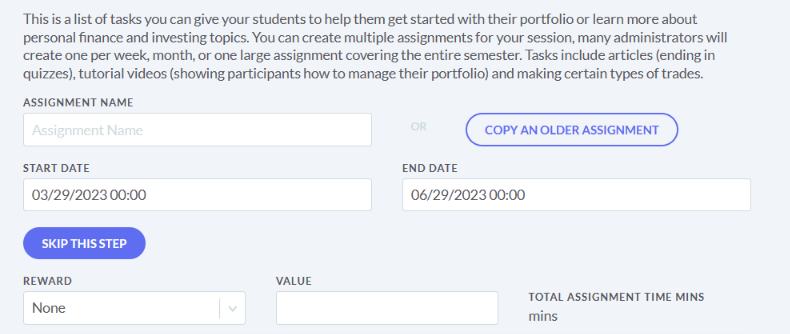
To create your first assignment here are a few things to note.
- Assignment Name: You can organize your assignments by subject, by week or any other method that suits your class. Whatever name you choose is what your students will see when they login.
- Start/End Dates: You can select an exact time when your assignment is due, (e.g. 5PM) or when students are able to start. TIP: If your assignment starts in the future, students will not be able to see them until that date arrives.
- Reward: Add a cash reward into your students Budget Game checking account, or their Stock Game buying power, after they complete all the lessons or tasks in an assignment. Choose which game and how much cash to be distributed.
Integrate the Budget Game with the Stock Game
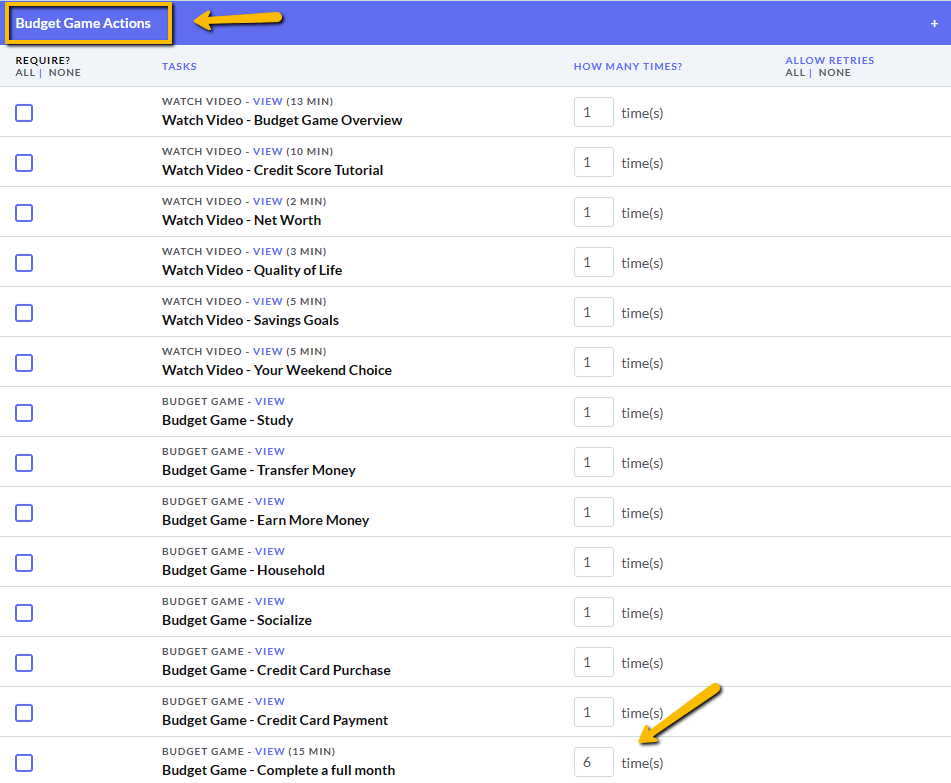
If you want to integrate the Budget Game into the Stock Game, you can create an assignment that distributes an amount of money into the Stock Game after students compete X number of months in the Budget Game. To do this, select under Budget Game Actions the task Budget Game – Complete a full month and enter the number of months.
Navigating The Learning Library
With over 300 lessons, we’ve added a few shortcuts to make it easier to move between sections.
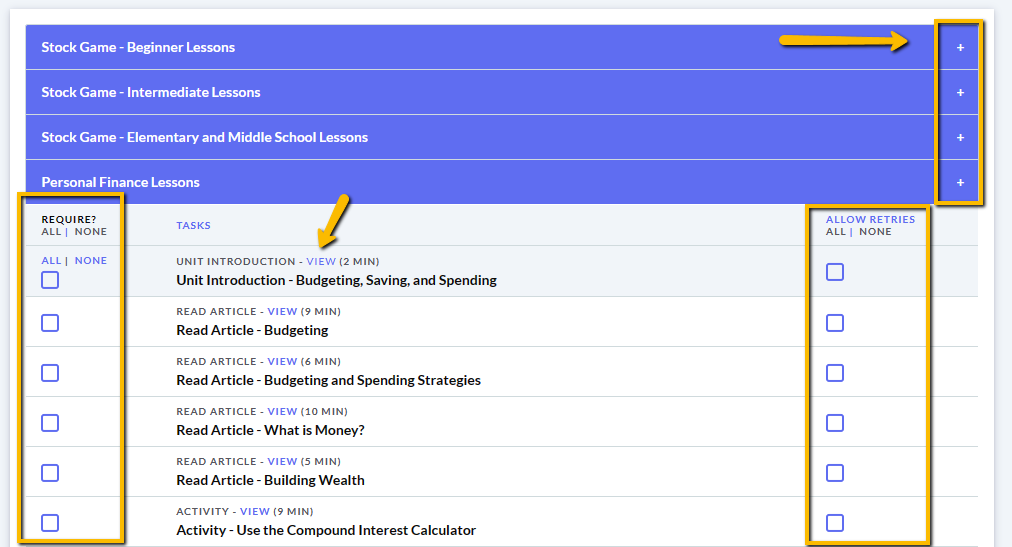
Each section header has a +/- at the end that allows you to collapse or expand all the included lessons. Quickly include all the lessons in a section by clicking Require All, or deselect them by clicking None. Allow students to retake the pop quizzes at the end of lessons by checking the boxes in the column on the right of the lesson names. Click All, under Allow Retries to allow students to retake all pop quizzes in a section.
If you don’t know what to pick for your assignments, and having a hard time getting started, please check out our Lesson Plans. Scroll through all the different topics like Budgets and Spending Plans, Economics Lesson Plans, Math Lesson Plans etc.